A day with condash
Audience. New user becoming a daily user — you've worked through Get started and want to see the realistic workflow.
When to read this. You've worked through Get started. You want to see the full workflow: not just "how do I create an item?", but "what does a day of real work look like when this tree is your work tracker?".
By the end, you'll have walked through the loop most people use condash for — open item, open its repo, run something, document, push, close — and know which surface each step uses.
Following along
The screenshots on this page come from a demo conception tree that ships in the repo at tests/fixtures/conception-demo/ — an imaginary CLI project called helio and its two companions. It is not in the installed app, only in a clone.
- If you cloned the repo: copy that directory somewhere writable and open the copy (
File → Open…). condash writes to.condash/on first boot, so work on a copy rather than the checkout. The Code pane will stay empty — the repos it names don't exist on your machine — but every Projects, Knowledge, and Deliverables surface is real. - If you installed a binary: follow along in your own tree. Steps 1, 4, 6, 7, and 8 work on any item; steps 2, 3, and 5 need a configured repo and an incident with notes — substitute your own where the demo names its own.
The scenario
You're the helio maintainer. A user filed an incident: `helio search` crashes on large logs — a reproducible OOM on any corpus above ~800 MB. It's open at projects/2026-04/2026-04-08-search-crash-large-logs/, kind: incident, status: now, PROD, high severity. Three of its eight steps are done and a fourth is in progress. You're going to take it forward.
1. Open the item
Launch condash if it isn't running:
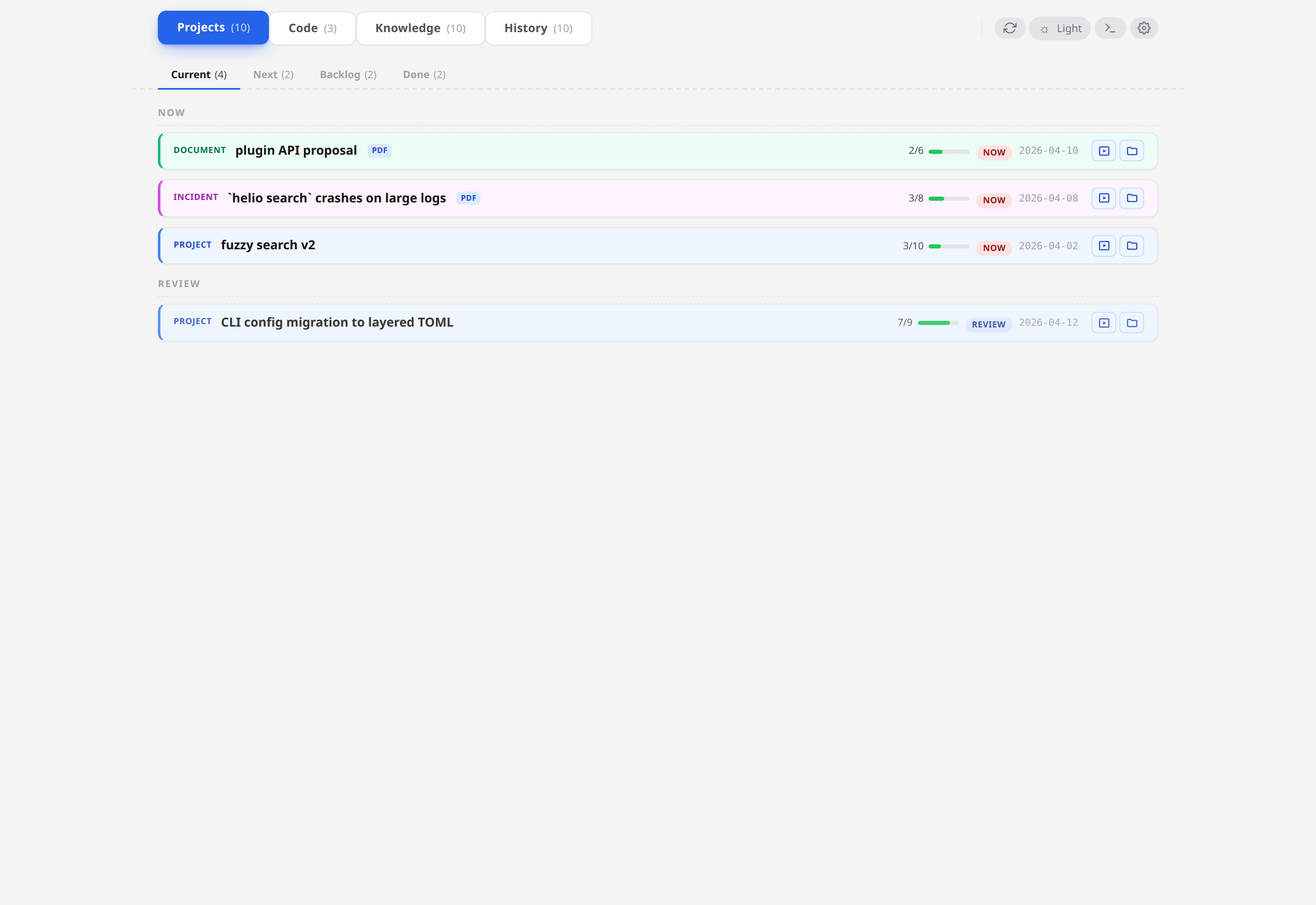
The incident is in the NOW section of the Projects pane — click its row and the item modal opens. If your tree is bigger than the demo's, Ctrl+K (or Ctrl+Shift+F) opens search instead: type a few words from the title and hit the item directly.
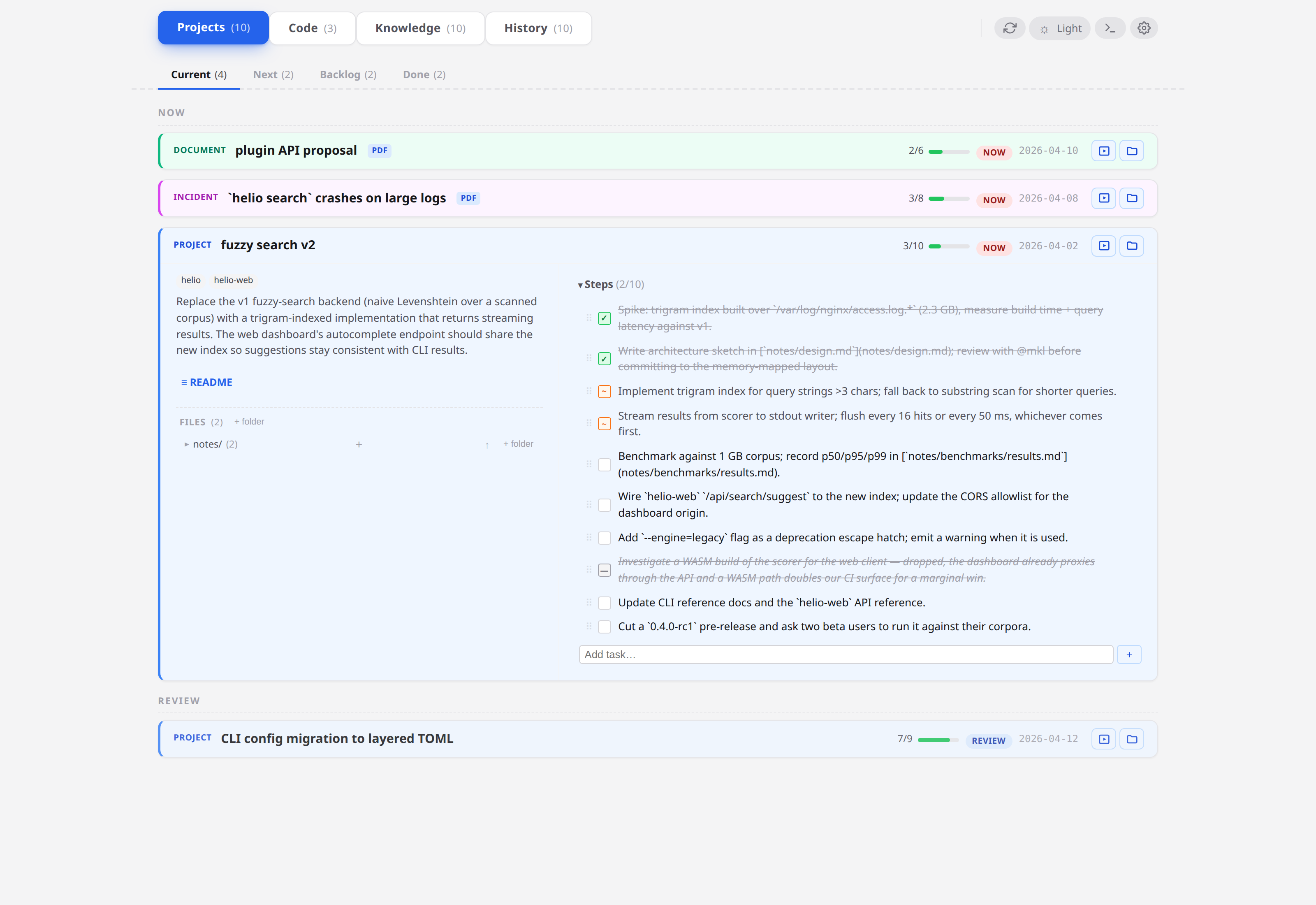
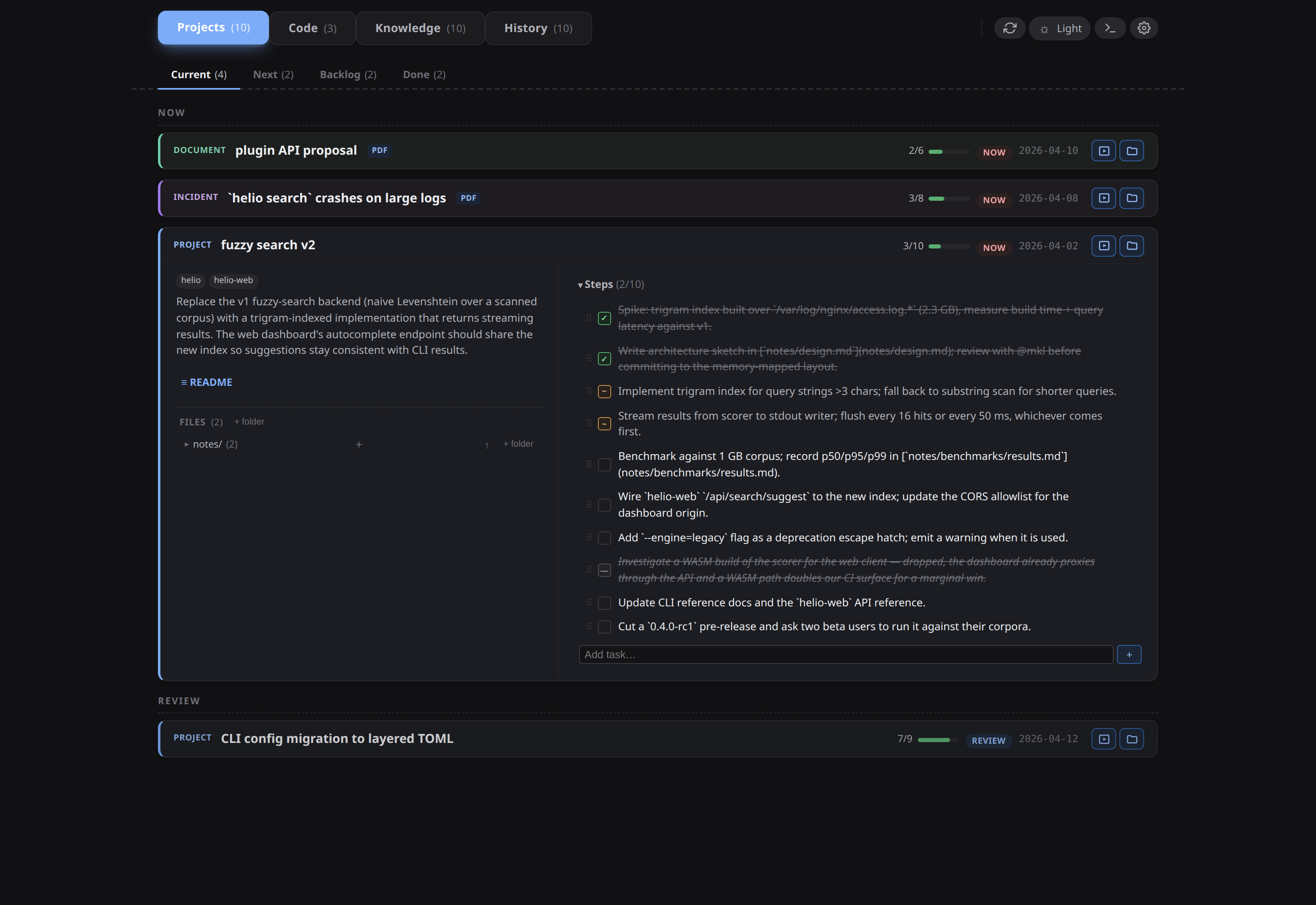
An incident card looks like a project card. What marks it as one is the kind glyph at the head of the title — every card whose kind parsed carries one, a small monochrome outline (a triangle for an incident, a diamond for a project, a page for a document; hover it for the word). Environment and Severity are frontmatter fields you set when creating the item; they live in the README, not on the card.
Read the README. The Description points at a specific test corpus, and notes/stack-trace.md has the traceback from the reporter.
2. Open the repo from the Code pane
Switch to the Code pane. Five cards render in declaration order — helio, its two declared submodules crates/parser and crates/search (each tagged submodule), then helio-web and helio-docs. The helio card's branch row carries a 1 dirty pill; click it and the popover lists the changed file — you left a WIP note there last week.
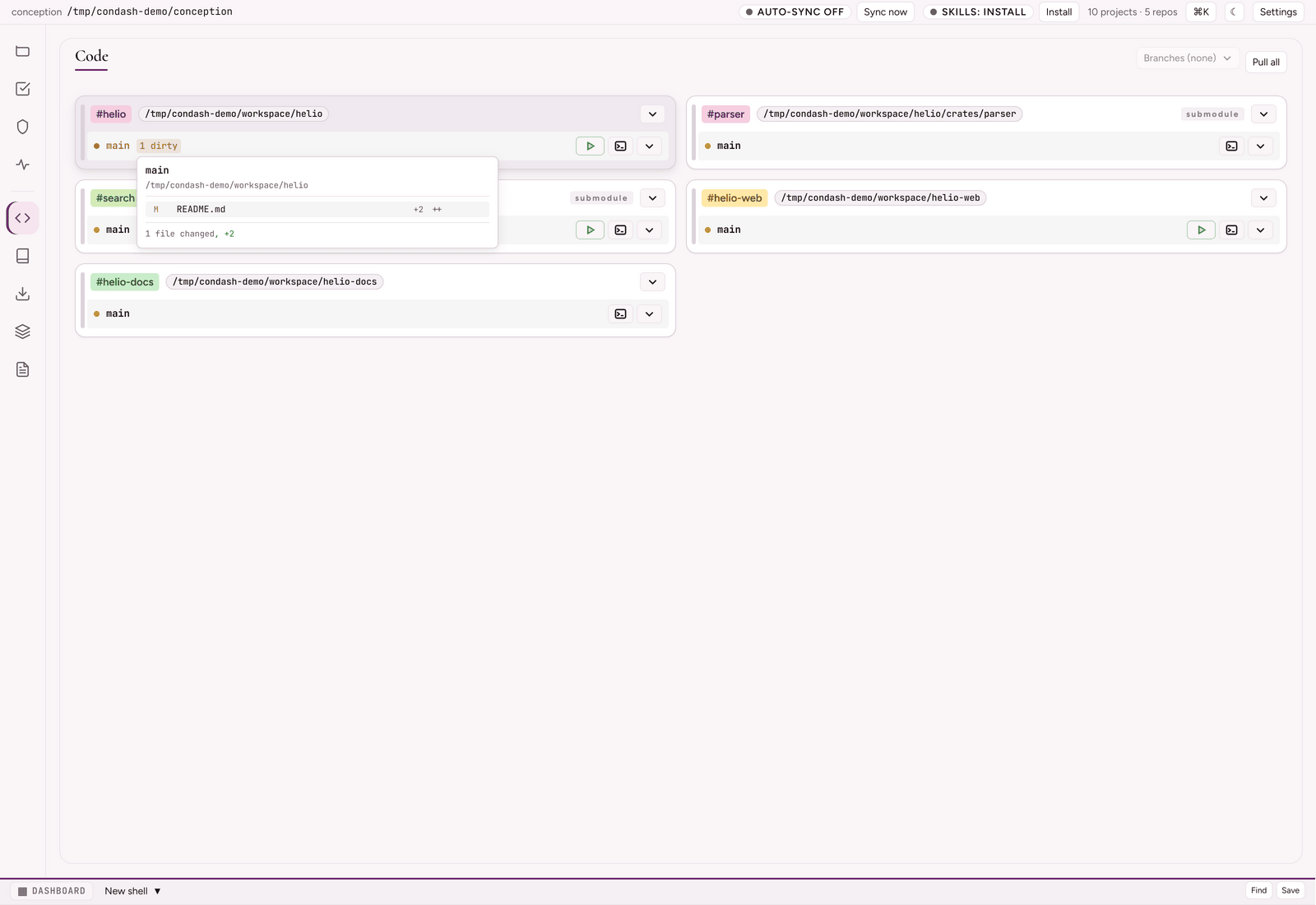
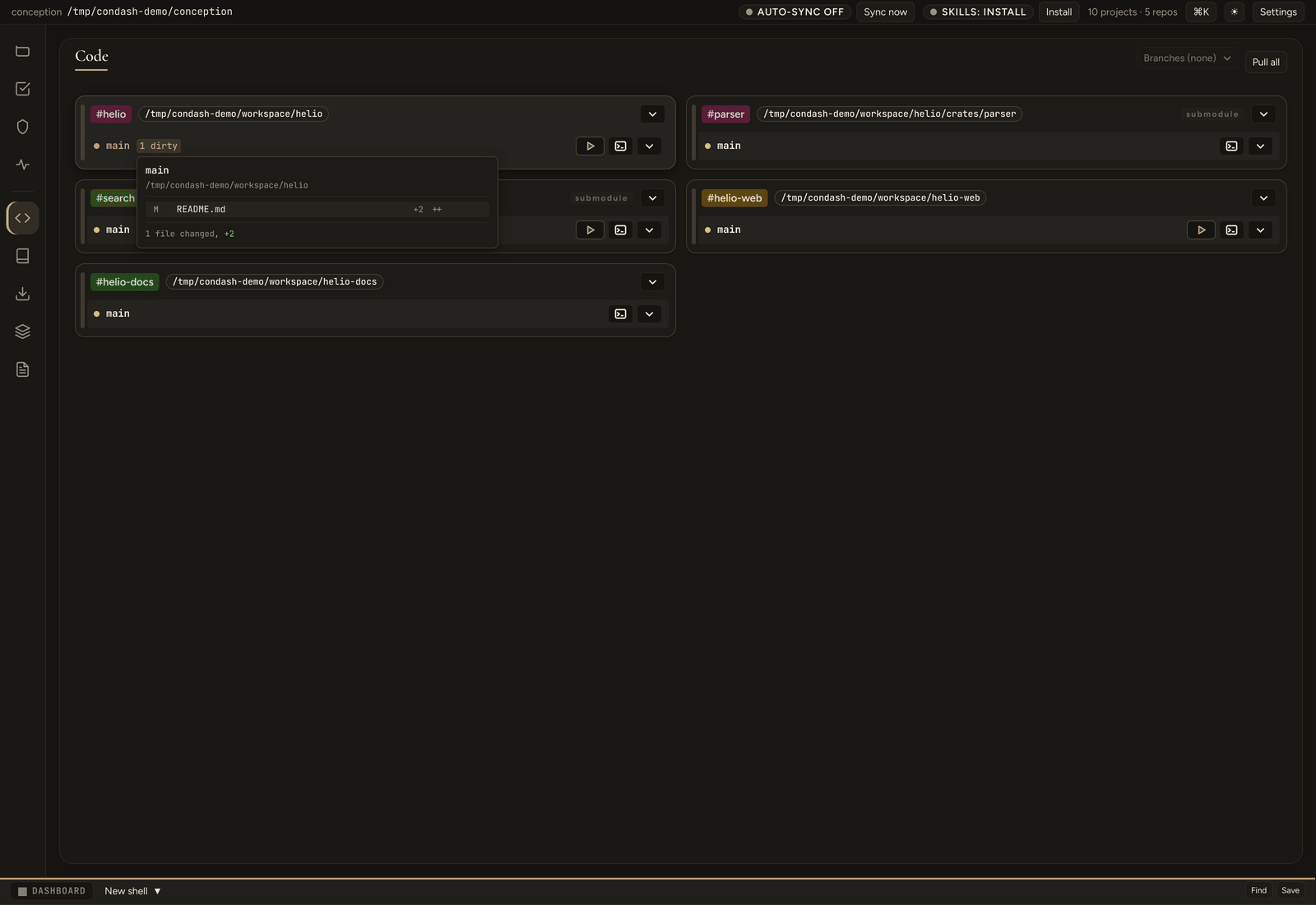
A repo is a card with a header (its #handle pill — the repo's registered app identity — its path, a Repo actions menu) and one row per worktree. The actions live on each branch row, and there are three of them:
- Run / Stop — only when that repo has a
run:command configured. - Open a shell here — spawns a condash terminal tab with its cwd in that worktree.
- Open with… ▾ — a dropdown holding your configured launchers (main IDE, secondary IDE, external terminal), Open in file manager, Pull branch, and Open PR #N when
ghfinds one.
Pick your editor from Open with… and it launches in that directory. The launcher commands live in the per-machine settings.json under open_with, with {path} substituted at launch time — see Repositories and open-with launchers.
3. Run the repro in the embedded terminal
Press Ctrl+` (or View → Show Terminal) — a pane opens beneath the dashboard with a real shell prompt — your $SHELL.
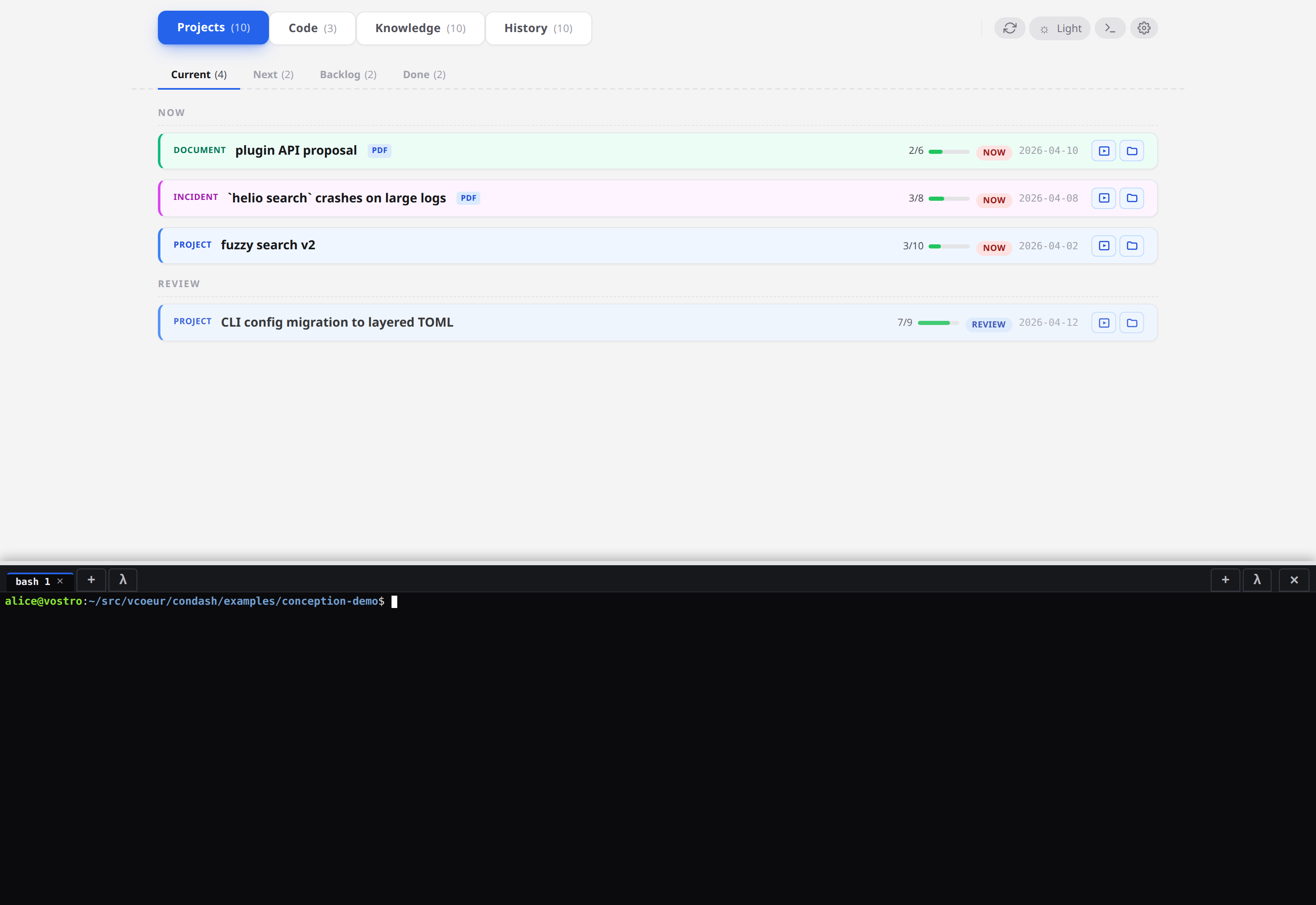
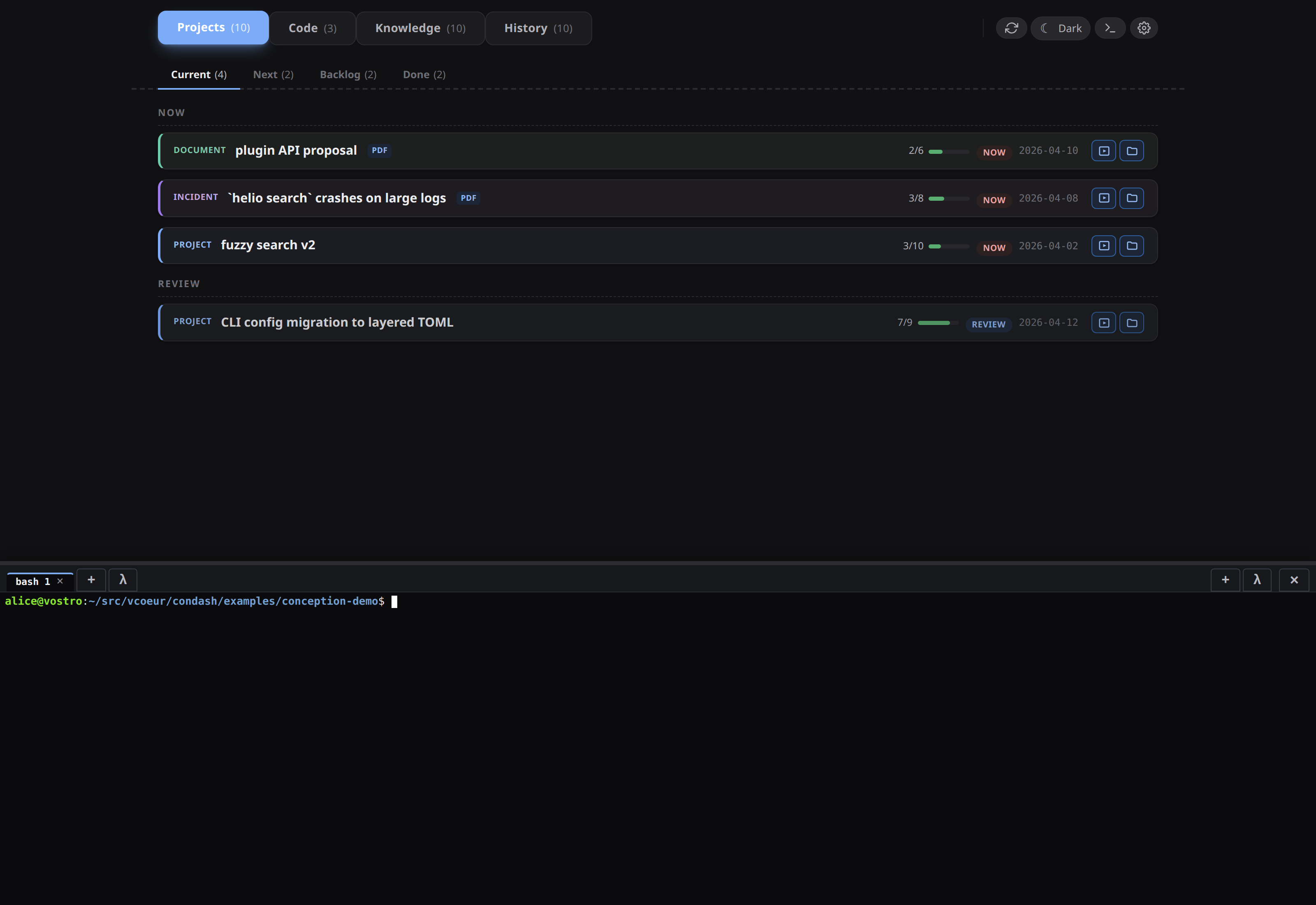
A tab opened from the pane's own New shell ▼ dropdown starts in the conception root; a tab spawned from a repo row's terminal button (step 2) starts in that repo or worktree. TERM is xterm-256color either way.
Run the repro from the incident's notes/repro.md:
cd ~/src/helio
cargo build --release
./target/release/helio search --format=json /tmp/fixtures/1g-corpus.log 'ERROR'
The process dies with Killed — confirmed reproducible. Paste the evidence into the item: open notes/stack-trace.md from the item modal, drop the new trace at the bottom, and hit Save (Ctrl+S). If you try to close the note with unsaved edits still in the buffer, condash asks before discarding.
In your own tree ~/src/helio won't exist — run the repro from your own incident's notes instead. A missing path here is the expected outcome, not an error.
Two terminal features worth knowing on day one:
- Screenshot paste —
Ctrl+Shift+Vanywhere in the dashboard inserts the absolute path of the newest file in your screenshot directory into the active prompt. It has no default directory: withterminal.screenshot_dirunset the shortcut toasts "No screenshot directory set" and does nothing. Set it in Settings → Terminal. - More tabs — the New shell ▼ dropdown in the pane header opens another shell, or any agent CLI you've configured as a launcher. Each tab keeps its own session and scrollback even while the pane is closed.
Full feature set: Use the embedded terminal.
4. Edit code, move steps as you go
Fix the panic in your editor. Come back to the dashboard whenever you finish a step and click its marker button — the marker cycles [ ] → [~] → [x] → [-], and the progress counter in the card's meta row (3/8 → 5/8) updates immediately. Each click rewrites exactly that one line of the README.
5. Document what you did
Incidents accumulate notes/ and usually end with a deliverable in deliverables/. In the demo, deliverables/incident-report.pdf is already there as a placeholder.
To produce your own: open the note you want to publish — the incident's notes/repro.md, say — and click Export as PDF in the note modal's header. condash renders the Markdown and asks where to save; point it at the item's deliverables/ directory. No external toolchain, no script.
Then declare it: add a Markdown link under the README's ## Deliverables heading —
## Deliverables

- [Incident report](deliverables/incident-report.pdf) — formal write-up for the 0.4.0-alpha release list.
— and the item modal's Deliverables section picks it up:
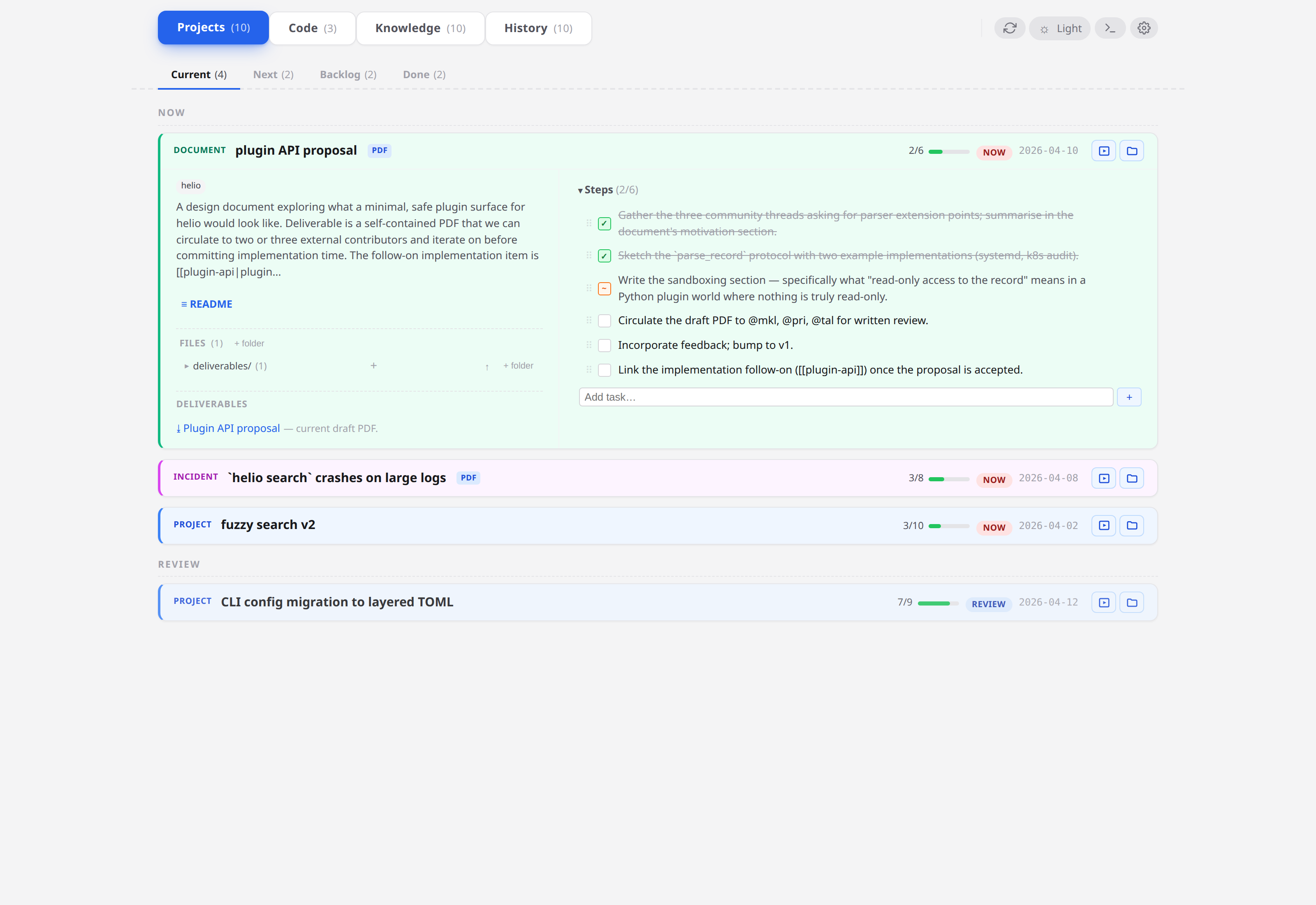
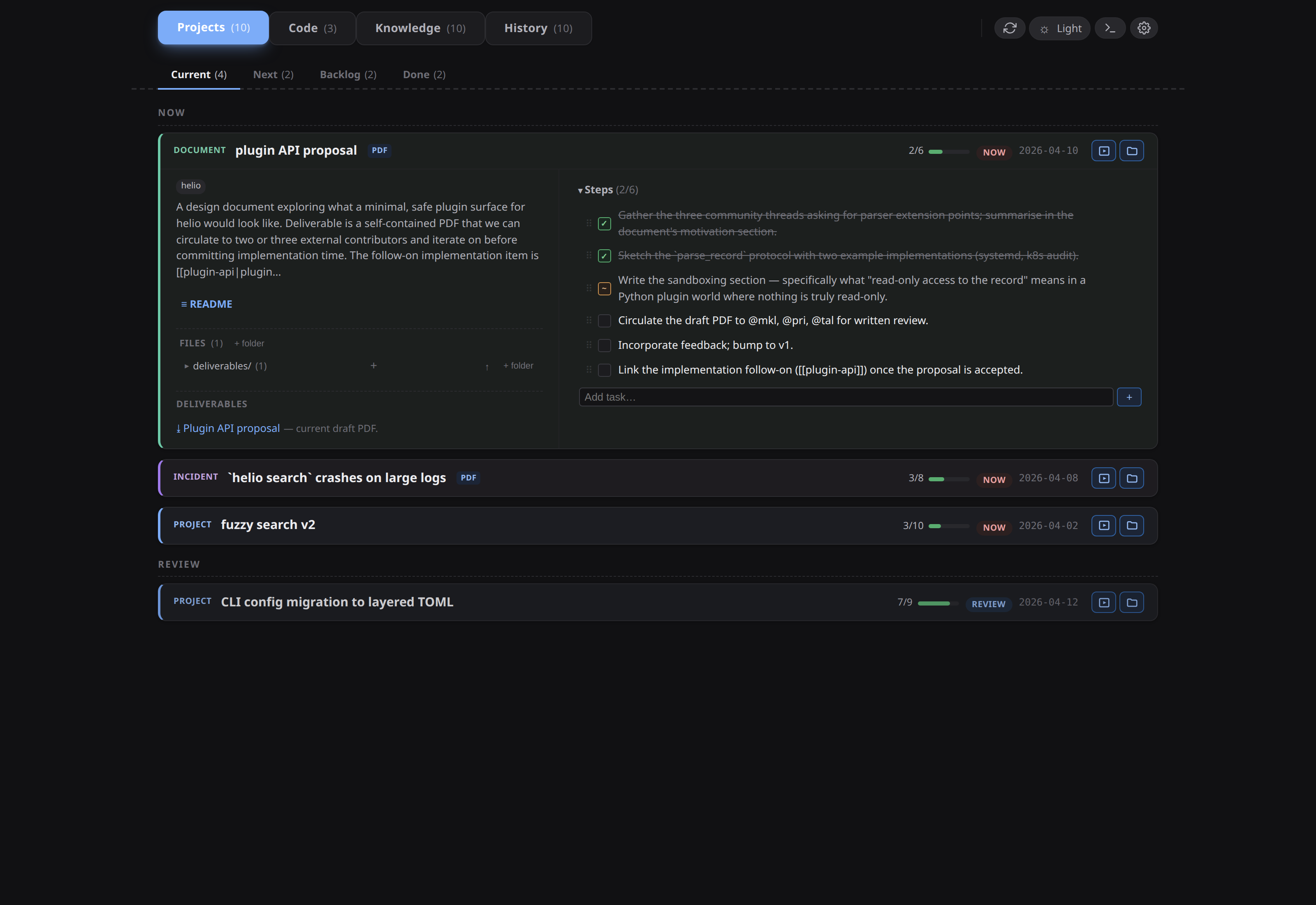
Clicking the entry opens the PDF in an in-app modal hosting a Chromium <webview> — no OS handler involved. The Files panel next to Steps is a live tree of the item's own directory, with + Add note / + New file / + New folder to grow it without leaving the app. There is no deliverable badge on the card itself; the card carries its dated slug on its first row, the kind glyph and title on the second, and a meta row with app pills, branch, open-PR badges, a warn glyph for a non-canonical status, the step progress, and the last-activity date. See Deliverables and PDFs.
6. Push a PR
From the embedded terminal:
cd ~/src/helio
git switch -c fix/search-large-logs
git add -A
git commit -m "Guard overflow in search byte offsets"
git push -u origin fix/search-large-logs
gh pr create --fill
Once the PR is open and gh can see it, an Open PR #N badge appears on the item's card and in the repo row's Open with… menu.
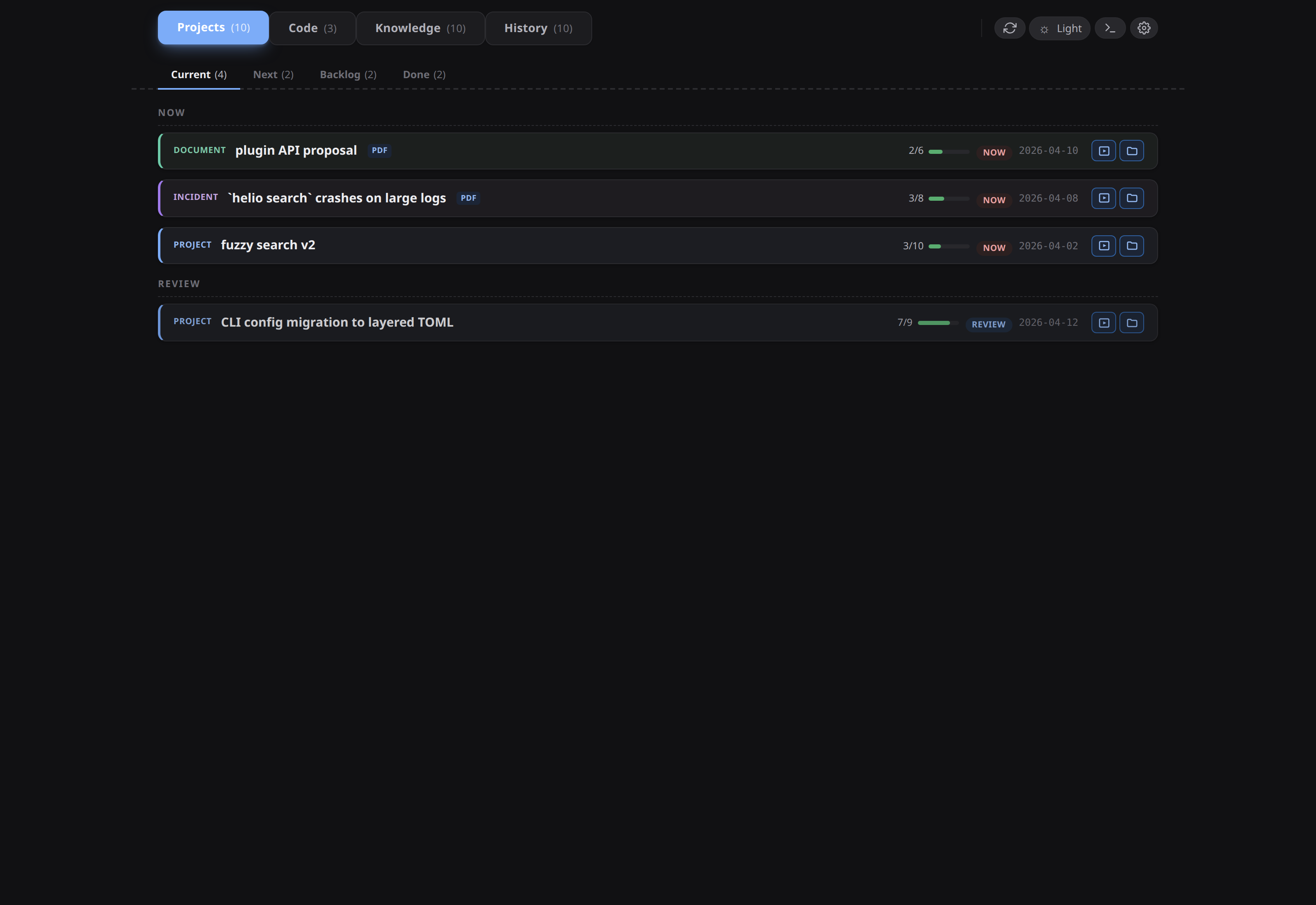
The incident is now waiting on an external signal — the merge. Change its status from now to review: click the status pill in the item modal's header and pick review from the list. (On the card in the list, the same change is a drag to another section, or Ctrl/Cmd+1…5 with the card focused.) condash rewrites the README's status line — status: for YAML frontmatter, **Status**: for the legacy bold-prose form.
The item moves from the NOW section to REVIEW. The Projects pane is one scrolling stack of sections in the fixed order now, review, later, backlog, done, plus a trailing ? for any item whose status isn't one of those five. The screenshot below shows the five canonical sections; the ? section only appears once some item carries an unrecognised status, and is pictured in Status values.
Prefer a skill over the shell? In an agent session with the skills installed, this step is one command:
The skill resolves the item, shells out to condash projects read, and hands you the README's parsed state — the same canonical view the dashboard renders. From there /projects update search-crash-large-logs moves a step marker or flips status: to review in the same breath as the PR, and the shipped /pr skill builds the PR body from the item's README for you.
Both need a harness with the skills installed: the five skills ship inside condash and land in your tree when you run condash skills install (or click Install on the status bar's skills indicator), and your harness launcher renders them into slash commands at session start. See Extend the management skills and The Skills pane.
7. Close on merge
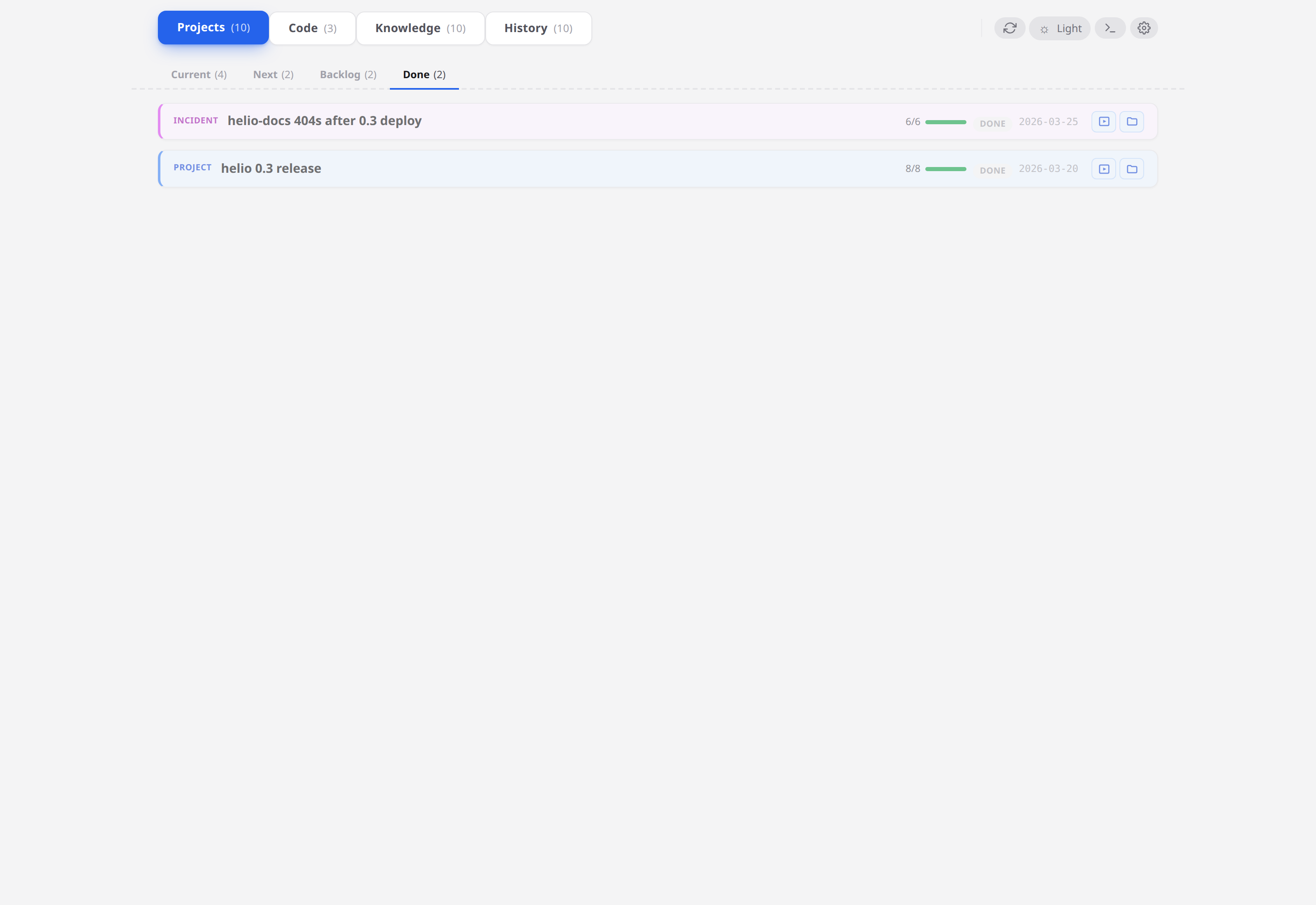
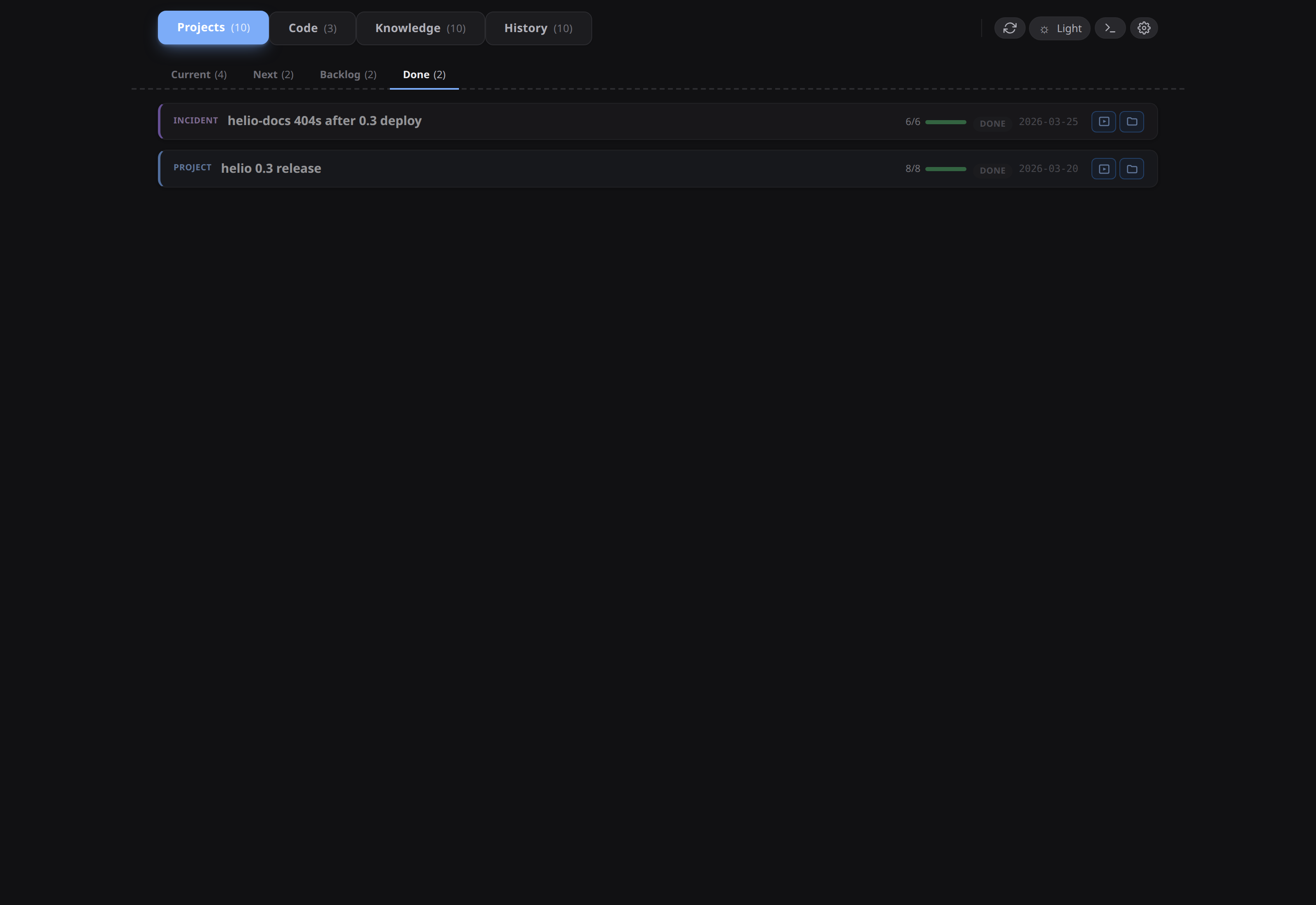
The PR lands the next day. Open the item, finish the last step, change status from review to done.
DONE is collapsed by default — expand it and the item is there. Anything closed in the last seven days sits in a "recent" band at the top; everything older is filed under a collapsible subgroup per close-month.
8. Find it again later
The item stays exactly where it was created — nothing is archived or moved. Press Ctrl+K and type overflow: the incident's README and your updated stack-trace note surface together, ranked, each with a snippet. Six months from now this is the only step that matters, and it works because the whole thing is still Markdown on disk.
What you just learned
- The daily loop is: open item → open repo → run in terminal → document in notes → PR → change status → close. Every step is either a file edit in your editor or a narrow dashboard mutation (marker toggle, status change, note save, config edit).
- The Code pane plus the terminal make condash a viable cockpit — you don't tab between five tools to do a day of work.
reviewexists precisely for "done on my end, waiting on an external signal". Use it.- Screenshot-paste and in-app Export as PDF are the two quality-of-life features most people miss on first read. Neither is essential; both are worth knowing.
Where to go from here
- The full list of features behind buttons you haven't clicked: Guides.
- The exact shape of every config key, every flag, every README field: Reference.
- The philosophy behind "files-are-the-database": Why Markdown-first.