The Tasks pane
Audience. You re-type the same agent prompt with small variations — "review this app's docs", "triage that incident" — and want it saved once and run in two clicks.
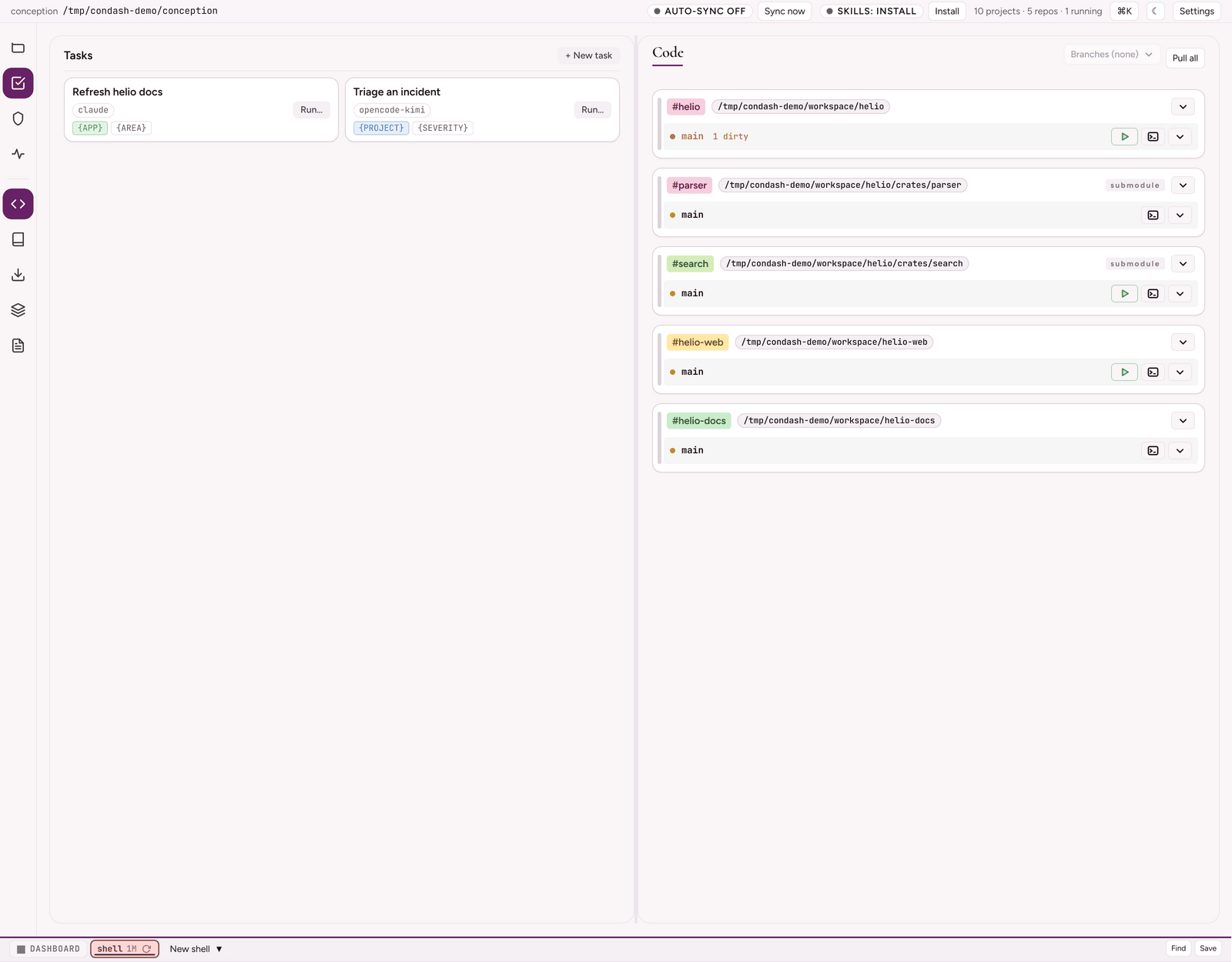
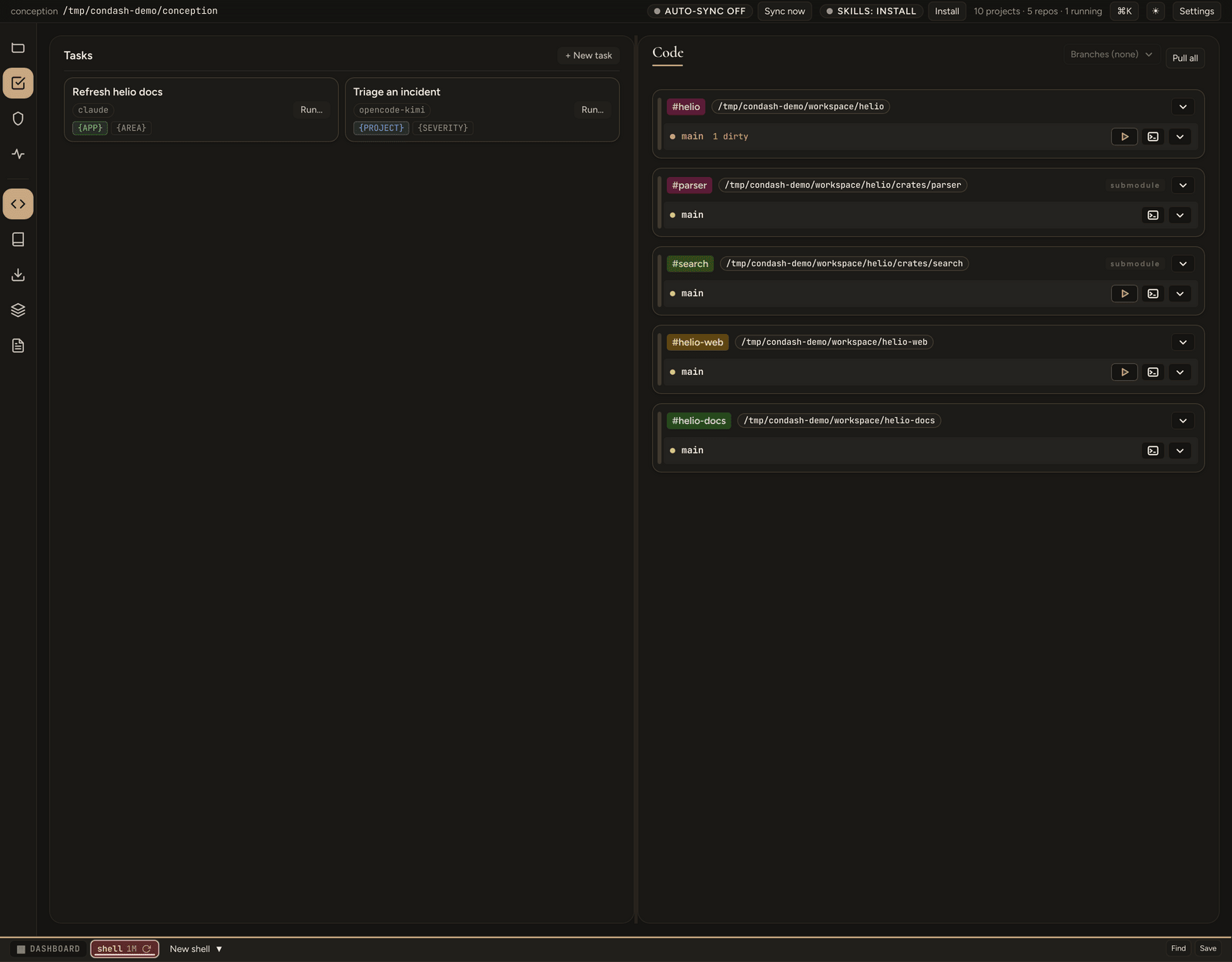
A task is a reusable, parameterized agent prompt: a name, a referenced agent, and a markdown prompt that carries fillable {markers}. You fill the markers in a form, click Run, and condash spawns the agent in a fresh terminal tab and submits the filled prompt.
Current route. Click Automations beside Settings in the top bar to open its full-window overlay. There is no Automations rail item or native View command, and opening it does not change the persisted working pane. Storage under
tasks/is unchanged.
Back or Esc returns to your working pane. Nested confirmations close before the editor; dirty editor or run fields require Discard or Keep editing on incidental dismissal, overlay replacement, or conception switching. The editor's explicit Cancel still cancels directly when idle. During Save/Delete, editing and Cancel are disabled; dismissal or conception switching waits for the task definition and schedule/run configuration to finish together. Utility launchers are disabled throughout a conception switch, until main IPC and the displayed path agree. Closing the overlay stops its roster subscription and running-log tails, not the main-owned scheduler; reopening seeds a fresh roster.
Where tasks live
While Automations is open, external file or directory changes under tasks/ refresh the definition cards through the existing watcher batch. The list has one active read and one coalesced follow-up; unrelated events do not refresh it. An open editor or run form keeps its existing draft, markers and filled values, even if its definition changes on disk. Close and reopen that child form to use the new definition. Closed Automations performs no definition-list reads; reopening loads current definitions. Running-task subscriptions remain separate from list refresh.
Each task is one directory under your conception:
<conception>/tasks/
  refresh-app-docs/
    task.json      { "name": "Refresh app docs", "agent": "claude-deepseek-v4-pro" }
    prompt.md      Review {APP} and update its docs. Focus: {AREA:CLAUDE.md and docs/}
task.jsoncarries exactly two fields —nameandagent(the id of an agent from theagentssettings list). Nothing else is read from it; every other per-task setting lives intaskConfig(see Create or edit a task).prompt.mdis the raw markdown prompt with markers — a real, hand-editable, diffable file. Edit it in the pane or in your editor; both round-trip.- The directory name is the slug (
^[a-z0-9-]+$). Thetasks/tree is created on first save.
Config in JSON, prose in markdown — the same split the rest of the conception follows.
The marker grammar
Markers are parsed from prompt.md:
| Marker | Meaning |
|---|---|
{KEY} |
required field, empty default |
{KEY:default value} |
field prefilled with default value (runs to the next }; spaces allowed) |
KEY is [A-Za-z_][A-Za-z0-9_]* — convention is UPPER_SNAKE. A key used several times shows one field and substitutes everywhere.
Reserved pickers: {APP} and {PROJECT}
Two key families render as searchable pickers instead of text fields, and one selection populates the whole family:
| Marker | Field | Bare value | Sub-tokens |
|---|---|---|---|
{APP} |
app picker | #<handle> (e.g. #kasten for notes.vcoeur.com) |
{APP_NAME} (repo name), {APP_PATH} (absolute checkout path) |
{PROJECT} |
project picker | the slug | {PROJECT_SLUG}, {PROJECT_PATH} (rel path), {PROJECT_BRANCH}, {PROJECT_BASE}, {PROJECT_TITLE} |
A prompt that uses only a sub-token (say just {APP_PATH}) still surfaces the matching picker — picking an app fills every APP_* token at once.
The app picker lists your configured repositories; the project picker lists the projects condash already loaded.
Provided variables: {TABS} and {UPDATED_TABS}
{TABS} and {UPDATED_TABS} are condash-provided markers — never fillable fields; condash injects them from runtime state. {TABS} expands to the JSON list of the open terminal tabs that exist right now:
Only the tabs that actually exist are injected — no prior titles, no closed tabs. A task that wants to reason about "what is running where" reads {TABS} and looks each session up via condash logs read.
{UPDATED_TABS} is the same shape, narrowed to the tabs that produced new output since this task's last scheduled run — condash drops the ones with nothing new. A recurring task should prefer it: it does the "what changed?" filtering in condash (cheap, no model call) so the agent only acts on the tabs worth re-reading, and — if the task opts in to the growth gate — when nothing changed the scheduler skips the run entirely (see Schedule a task). On a manual run there is no "last run" to diff against, so {UPDATED_TABS} is seeded to the full open set. The shipped Term titles task (below) is built on it.
Run a task
A task card carries a single Run… button — clicking it opens the run popup:
- Click Automations in the top bar and click Run… on a task card.
- At the top, the Agent select defaults to the task's stored agent — leave it, or switch it to run this one time with a different agent (only prompt-seedable agents are selectable). The Run button sits beside it.
- Fill the markers below — pick an app / project where prompted, edit the text fields (prefilled from defaults).
- A Run mode select and a Keep out of logs checkbox sit beside the agent picker, each prefilled from the task's default (below). Run mode switches this one run between Interactive (
--prompt) and One-shot (--run) (disabled for an opaque agent). When Keep out of logs is ticked, this run's console log is routed to.condash/manual/<slug>/instead of the normal session logs — the tab is still visible. - The Prompt to run box previews the substituted text live.
- Click Run. condash spawns the chosen agent in a fresh terminal tab (working directory = the conception root), names the tab
<agent label>•<task name>— the agent'slabel, not itsid— so a running task is identifiable at a glance, and delivers the filled prompt: typed into the tab and submitted for an opaque agent, or passed in argv for a promptFlags agent —--prompt(interactive) or--run(one-shot) per the chosen run mode. Submission is unconditional; there is no per-task "submit" switch.
Run is disabled when the selected agent is not defined — pick a current one from the top select (a task whose stored agent went missing opens with that dangling id shown as (missing)). The card's Run… button itself stays disabled while the task's stored agent is missing (the card shows a missing badge).
Create or edit a task
Click + New task, or click a task card to open the editor popup for an existing task:
- Name — the card title.
- Slug (directory under
tasks/) — its own field. For a new task it auto-derives from the name until you hand-edit it; after that it stays put. - Agent — pick an agent from the
agentssettings list; the select shows the agent'slabeland stores its stableid. Only agents withpromptFlagsare selectable — a task hands its filled prompt to the agent via--prompt/--run, which an opaque command can't accept. Agents without the flag are shown disabled (a new task defaults to the first prompt-seedable agent). A task already pointing at an opaque agent keeps that selection and still runs via the type-into-tab fallback. - Prompt — markdown with
{MARKERS}. The Markers chips below update live as you type so you can see the fields you're creating. - Schedule — an opt-in cadence typed as a number plus a unit —
s/m/h/d(e.g.5m,2h,1d); blank = off. The editor shows the parsed interval beside the field as you type (and flags an unrecognised one). See Schedule a task below. - Run mode — how a prompt-seedable agent is driven, and the default for this task's runs (overridable per run): Interactive (
--prompt) keeps the tab open after the prompt runs; One-shot (--run) runs the prompt once and exits. Prefer one-shot for a scheduled task so its headless run exits cleanly instead of waiting for the timeout. Moot for an opaque agent (the keystroke path is interactive only). - Run timeout — shown only once a schedule is set: how long a single headless run may live before it is killed and discarded (1m / 5m / 10m / 30m / 1h; default 10m). See Schedule a task.
- Only run when a tab changed (skip idle ticks) — shown only once a schedule is set: opt the scheduled task in to the per-tab growth gate. Off by default (the task fires every interval); tick it for a task that acts on
{UPDATED_TABS}so a tick with no changed tab is skipped. See Schedule a task. - Keep manual runs out of the normal logs — the per-task default for the run-popup toggle.
The editor carries Save / Cancel and, for an existing task, a Delete button that asks for confirmation first. Renaming the slug moves the task directory.
The Schedule, Run mode, Run timeout, Only run when a tab changed, and Keep out of logs fields are not stored in task.json (which stays name + agent); they live under a taskConfig map keyed by slug in .condash/settings.json (a conception-owned key — taskConfig describes this tree's tasks and lives nowhere else). Clearing them all removes the entry.
Schedule a task
A task with a Schedule cadence runs itself on that interval — headless, with no visible tab and no termSessions broadcast. There is no default schedule and no default agent: a task is inert until you give it a cadence, and it always carries its own (prompt-seedable) agent.
A scheduled run is never written to the normal session logs. Its console output is teed to .condash/scheduled/<slug>/ (the newest 5 runs are kept; older files are rotated out), independent of your global terminal-logging toggle — purely for debugging the agent's chatter. The run's actual product is whatever the task itself writes to disk; condash does not capture it.
The scheduler single-flights every task (never overlaps a still-running run of the same task), and always hands the run the tabs that changed since its last run via {UPDATED_TABS}. For a task that only acts on what changed, tick Only run when a tab changed (skip idle ticks) to add the per-tab growth gate: a tick with no changed tab is then skipped entirely, so a quiet workspace spends nothing and a busy one only pays for the tabs that moved. The gate is off by default — without it the task fires on every interval regardless of tab activity, which is what a task that ignores {UPDATED_TABS} wants.
Run mode + run timeout. Set the task's Run mode to One-shot (--run) so a scheduled run exits cleanly the moment the agent finishes — then the Run timeout (default 10m) is just a safety cap on a hung run. With the default Interactive (--prompt) the agent finishes its work but does not exit the process, so the timeout doubles as the discard mechanism: without it the run would hold the single-flight slot, stretching the effective cadence out to the timeout regardless of the schedule. If you keep a scheduled task interactive, keep the timeout ≤ the schedule interval so each cycle frees the slot before the next is due.
Running runs
While a scheduled run is in flight it appears in a Running section at the bottom of the Tasks pane. Each row shows the task and how long the run has been alive; expand it to tail the run's live log, or hit Kill to terminate and discard it immediately.
Keep runs out of the logs
The Keep out of logs toggle (per-task default in the editor, overridable per run in the popup) routes a manual run's .txt to .condash/manual/<slug>/ instead of .condash/logs/. The tab stays visible and interactive; only its on-disk log location changes. With the flag off, the run logs normally.
Both stores — .condash/scheduled/<slug>/ and .condash/manual/<slug>/ — are browsable from the Logs surface's Task runs view, and stay invisible to the normal Logs list, search, and reports.
See also
- Agent CLIs and model providers — define the agents a task references, including the
promptFlagsa task needs. - The Logs pane — where the Task-runs store is browsed.
- Retired Deliverables pane — historical description of the removed aggregate; item-level deliverables remain available from project previews.
- Terminal diagnostics — performance readings from the top-bar Diagnostics overlay.
- The embedded terminal — where a running task's agent tab opens.