Use the embedded terminal
Audience. Daily user.
When to read this. You want to stop alt-tabbing out to a separate terminal window while you work — or you've toggled the pane open once and couldn't find half the features.
The embedded terminal is a real PTY driven by node-pty in the main process and rendered by xterm.js (locked to xterm 6.x with the recommended addon stack — fit, search, web-links, clipboard, unicode11, webgl, serialize, image, ligatures) in the renderer.
Opening the pane
Two ways:
- View → Show Terminal in the menu bar.
- Press the configured toggle shortcut. Default is
Ctrl+`; change it underterminal.shortcutinsettings.json.
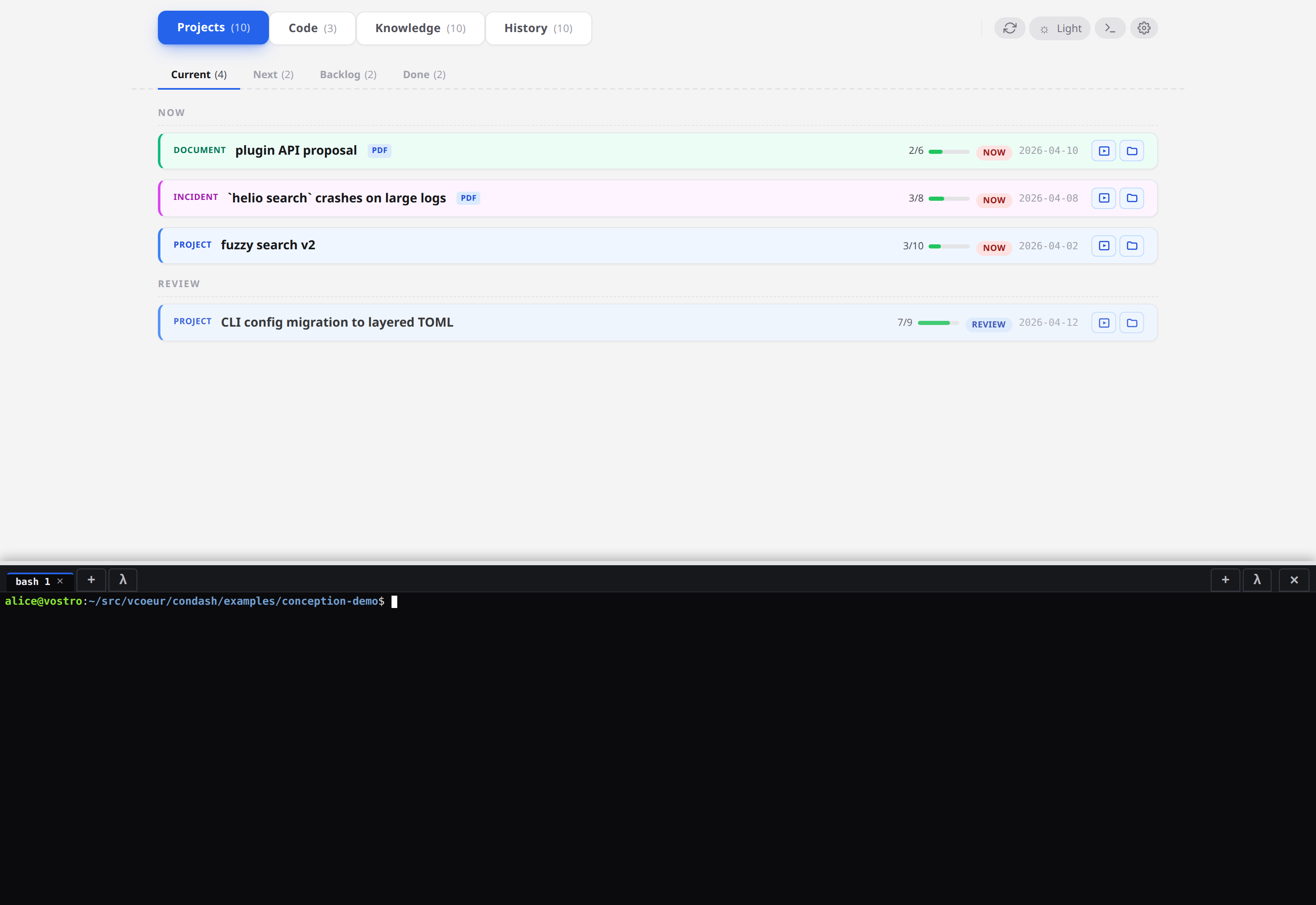
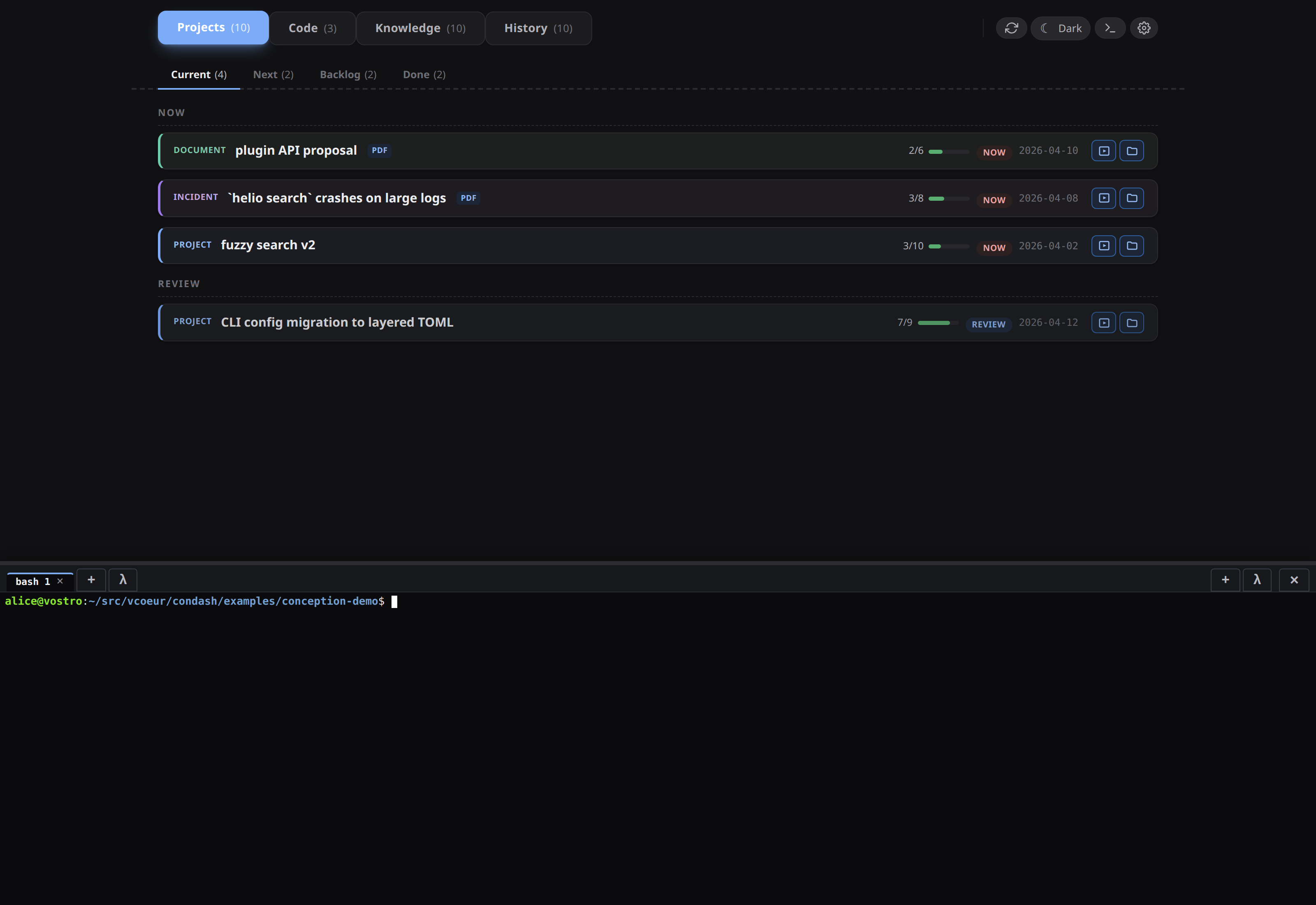
The pane pushes the dashboard up — it does not overlay. Toggling the pane closed suspends rendering but keeps every tab's PTY alive and its scrollback intact. Code-pane Run buttons no longer auto-open the pane — output stays in the per-row CodeRunRow inside the Code pane.
Auto-collapse under modals. Opening a document or full-screen overlay — a note, project preview, PDF / HTML / image / plan viewer, or the search / settings / shortcuts / help / about panels — auto-collapses the pane so the modal takes the full window height, and re-opens it when you close the last one. Toggle the pane yourself (the shortcut, the strip handle, or View → Show Terminal) while a modal is open to keep it visible — your choice stands until that modal closes, after which the next one collapses it again. Small confirmation dialogs (quit, force-stop) leave the pane alone. The collapse is display-only: your saved Show-Terminal preference in settings.json is never overwritten.
Single-column by default; drag to split
The pane starts as a single column. The right column materialises only when at least one tab lives there (created from the right strip's + button or dragged across from the left). During a tab drag, a Drop to split → zone appears on the right edge so you can promote single → split without first creating an empty right pane. Collapsing the last right tab returns to a single column.
Each side header carries:
- Spawn dropdown — a single button that opens a menu listing your agents. The first option is always
New shell(spawns the configured shell); below it is one entry per agent, shown by itslabel, from theagentssettings list. Selecting an agent spawns a tab running itscommand. The menu is rendered through a Solid<Portal>todocument.body(withposition: fixedcoordinates fromcreateDropdownMenu({ align: 'left' })) so it escapes.terminal-pane'scontain: layout paintand the strip'soverflow: auto— both of which would otherwise clip the menu down to the strip's 32 px height. When favourites push the rest behind aMore ▸fly-out (see Config → Agents), a long fly-out is likewise capped to the viewport and wraps into multiple columns — flipping left or up as needed — so the whole list stays on-screen instead of running off the bottom edge. - Tab strip — click to focus the tab; middle-click to close. Clicking inside the xterm itself also promotes the tab to active (the click+focus listener was wired so a stray click never silently sends keys to a different tab than the one you're looking at). Tabs are coloured buttons that wrap onto multiple compact rows when the strip gets crowded rather than scrolling sideways, so every tab stays visible; the focused tab is set apart by an accent ring + bold label (not by dimming the rest), and hovering a truncated tab shows its full title. A linked tab is visually unchanged — its linked projects appear in the hover popover and its context menu, never on the tab itself (see Tab links below).
- Dashboard tab — the left strip's first entry is a fixed Dashboard tab (it can't be renamed, closed, or dragged). Selecting it swaps the bottom band to the live tab-summaries Dashboard; selecting any real terminal tab switches straight back, and clicking it while it's already active closes the pane. It's always present, even with summarisation off — the body then explains how to enable it. The whole feature has its own page: The Dashboard.
Tab titles depend on how the tab was spawned:
New shell— labelledshell; once the shell emits an OSC 7 cwd hint, the label switches to the cwd basename (condash,notes, …) and follows subsequentcds.- Launcher option — labelled with the entry's
titleif set, otherwise thecommand(e.g.Claude,claude,python -m notebook). The label is pinned: OSC 7 cwd updates do not override it. - Code-card "open in term" — labelled
<repo> · <branch>(e.g.condash · my-feature). Also pinned, so the branch stays visible even after the shellcds inside the worktree.
A manual double-click rename always wins. The full path shows in the title attribute.
A clean exit 0 auto-closes its tab, and so does a Stop you asked for — the one exception being a Stop during which the cgroup OOM killer fired, which counts as abnormal precisely because "something here ran out of memory" is news you didn't have. An abnormal exit keeps its row, badged with a verdict (out of memory, SIGKILL, exited — code N, …) and a Restart button, so a tab that died while you were away can still be read. See Troubleshooting → A terminal tab disappeared for the verdicts. If you want the buffer before a close lands, use the toolbar's Save buffer button (powered by xterm's serialize addon).
The full title precedence is manual rename → cwd basename (unpinned) → window title (OSC 0/2) → spawn-time label.
Tab links
A tab can be linked to project cards — see The Projects pane → Linking a card to terminal tabs for the card side (the Link button, the two decoration strengths, the "Linked tabs" fold with its focus and unlink rows, and the Active-tab filter). On the tab side, links surface in two places, and the tab itself stays undecorated — its zebra colour, label, and tooltip are exactly as they would be unlinked:
- Hover popover — hovering a linked tab lists its linked projects (by dated slug) under a Linked projects heading. The list shows even when the Dashboard summarisation is off and no summary exists — the manual link is readable without the opt-in LLM feature. The popover replaces the plain title tooltip while it is up.
- Context menu — right-clicking a linked tab shows a Linked projects block between Refresh and Close: one Unlink from
<slug>item per project and, when there are several, an Unlink all projects (n) item. A single-linked tab shows just its one item — unlink-one and unlink-all coincide.
A tab's output also drives suggestions: condash reads the recent output it already captures for each tab, and when a tab keeps naming one non-done project — by dated slug, short slug, or branch — that project's card offers Link (suggested) on its Link button. This is why a tab need not sit in a worktree to be recognised: what the tab says is the signal, not where it is. The suggestion decorates only that button and never the tab, nothing leaves the machine, and the matched text is never displayed.
Links are session-lifetime: closing the tab removes every relation of it (the card's Linked-tabs fold and decoration clear on their own), and a Restart re-points them onto the new session, so a restarted tab keeps its links. A renderer reload keeps them while the tab is alive. The label a card row shows was captured when the link was made; the tab itself always shows its true name.
Window-title tabs
When the program running in a tab announces a window title via OSC 0 / OSC 2 — as most coding harnesses do (Claude Code emits ✳ Ask about the weather, refreshed as the work changes) — condash adopts it as the tab name. It strips the leading status glyph (the idle marker and the spinner frames that cycle each animation tick) and coalesces, so only a real title change repaints the tab. A manual rename still wins, and on an unpinned tab the cwd basename takes precedence; but on a pinned tab (every launcher / "open in term" tab, where cwd is suppressed) the announced title surfaces over the spawn label — so an agent tab shows what the agent is doing.
TERM=xterm-256color, and the shell is launched with -l so your login rc-files run.
Power-user shortcuts
These two combos are intercepted by the xterm custom-key hook before the bytes reach the shell — as are Ctrl+C and Ctrl+V below:
| Shortcut | Effect |
|---|---|
Ctrl+F |
Open the search bar at the top of the active tab — find-as-you-type with case / regex toggles. Esc to close. |
Ctrl+Up / Ctrl+Down |
Jump to the previous / next OSC 133 prompt boundary. Requires shell integration — see Shell integration below. Without integration, the keys fall through to the shell. |
Ctrl+C / Ctrl+V are also handled specially — see Screenshot-paste below and the copy/SIGINT note in Troubleshooting.
The move-tab shortcuts are different. Ctrl+Left / Ctrl+Right (see Moving tabs between sides) live in the global keyboard handler, which deliberately bails out for anything inside the terminal host. So while a terminal has focus those keys fall through to the shell — word-wise cursor motion keeps working — and they move a tab only when focus is elsewhere in the app. The two exceptions that always win, even inside a focused terminal, are the pane-toggle shortcut and the screenshot-paste shortcut.
URLs in the buffer are clickable thanks to the web-links addon — clicking opens through the safe openExternal IPC verb (allowlists https: and mailto:).
Shell integration
Drop-in snippets for bash, zsh, and fish make the terminal render semantic prompts — a coloured gutter mark next to each prompt boundary (green = exit 0, red = non-zero) and Ctrl+Up / Ctrl+Down to jump between them. They emit two standard OSC sequences:
- OSC 133 — prompt-boundary protocol (
Aprompt-start,Bprompt-end,Ccommand-start,D;<exit>command-end with exit code). Same protocol used by iTerm2, WezTerm, kitty, and Warp. - OSC 7 — current working directory (
file://host/path). Drives the cwd-basename tab label for the plain+shell tabs (pinned tabs ignore OSC 7).
Where the snippets live
The three files — osc133.bash, osc133.zsh, osc133.fish — sit in the condash source tree under integrations/. They are not included in the .deb / AppImage / .dmg / .exe installers, since shell rc files are user-owned. Either:
- Clone the repo somewhere stable and source from that path, e.g.
~/src/condash/integrations/osc133.zsh. - Download just the file you need with
curl/wgetfrom the link above (raw view) and drop it next to your rc, e.g.~/.config/condash/osc133.zsh.
Substitute <path> below with whichever location you used.
Source it from your rc
Pick the line that matches your shell. Each snippet is idempotent (the [[ -f ... ]] / test -f guard skips silently if the file is missing, so the rc is safe to commit even on machines where condash isn't installed).
bash — ~/.bashrc
zsh — ~/.zshrc
fish — ~/.config/fish/config.fish
Open a fresh tab (+ in the terminal pane) so the new rc is picked up. Existing tabs need to be reloaded — the snippet only takes effect for processes spawned after the source.
Verifying
In a fresh tab, run:
That sends a manual prompt-start mark. condash should paint a small accent-coloured gutter dot on that line. Then run a failing command:
The gutter mark for the next prompt should switch to red (exit 1). If neither paints, the snippet didn't load — check the path you substituted, and that you reopened the tab.
A snippet sourced from a non-condash terminal (gnome-terminal, iTerm2, …) emits the same invisible escape sequences and is silently ignored — there is no visible change in those terminals, so it is safe to leave the line in your shared rc.
Live theming and font tweaks (Settings → Terminal)
File → Settings → Terminal (Ctrl+,, then the Terminal section) live-edits the terminal.xterm block: font family / size / line-height / letter-spacing / weight, cursor style + blink, scrollback depth, the ligatures toggle, and the full ANSI colour palette. terminal is a personal setting — the whole block lives in the per-machine settings.json, so the section sits under Personal · this machine and writes there (there is one copy, no per-conception override and no inheritance badge). Changes apply to existing tabs without a relaunch — the renderer rebuilds the xterm options object on save.
See terminal.xterm in the config reference for the full key table.
Moving tabs between sides
Keyboard shortcuts move the active tab left or right:
| Action | Default shortcut | Config key |
|---|---|---|
| Move active tab to left side | Ctrl+Left |
terminal.move_tab_left_shortcut |
| Move active tab to right side | Ctrl+Right |
terminal.move_tab_right_shortcut |
These are global shortcuts and they yield to a focused terminal (and to any text input) — see the note under Power-user shortcuts. Click outside the xterm first, or rebind them to a combination your shell doesn't use.
The shortcut syntax follows the HTML KeyboardEvent.key convention: Ctrl+Shift+X, Alt+1, etc. Modifiers allowed: Ctrl, Shift, Alt, Meta.
Use this to pair a build terminal on one side with a log-tail on the other without leaving the keyboard.
Screenshot-paste
This is the feature nobody discovers on their own. It solves one specific problem: "I just took a screenshot; now I want its path in my terminal to cat, mv, gh pr comment --body-file, or whatever."
Press Ctrl+Shift+V (configurable as terminal.screenshot_paste_shortcut) anywhere in the dashboard. condash:
- Looks up
terminal.screenshot_dir. There is no default — with it unset the shortcut does nothing but flash "No screenshot directory set — open Settings → Terminal → Screenshot directory." (The~/Pictures/Screenshotsyou see in the Settings form is placeholder text, not a value.) - Finds the newest file there — any file, top-level only. There is no extension filter, so a stray download in that directory will win.
- Inserts its absolute path at the active tab's prompt — no
Enterappended; you confirm. The tab is addressed by session, not by "whatever has focus", so a tab opening elsewhere at that moment cannot catch the paste. When the active column has no live tab to paste into — it is empty, or the tab there has exited — nothing is pasted and it says so rather than failing silently. It looks only at the active column, so a live shell in the other column of a split does not count. Unlike the Resources pane's → term, this shortcut never opens a shell for you: it is key-repeatable, and holding it would open a tab per repeat. It does bring the terminal body up when the bottom band is showing the Dashboard, so you can see the path it just pasted — the only layout change it makes, and only once the paste has landed.
Typical use: take a screenshot of a failing test → Ctrl+Shift+V → the path appears → prefix with cat or drop into a gh issue create --body-file command.
Regular text paste (Ctrl+V) reads the system clipboard in the main process (clipboardReadText IPC) and feeds it through term.paste(), so bracketed-paste mode is honoured — agent TUIs (e.g. opencode) see a multi-line paste as a single block. Copy (Ctrl+C, when there's a selection) writes the clipboard via the renderer's navigator.clipboard. Paste doesn't use the renderer clipboard because navigator.clipboard.readText() is permission-gated and unreliable in Electron.
Configuration surface
terminal is a personal, per-machine setting: the whole block — including its xterm, logging, memory, and perf sub-blocks — lives in ${XDG_CONFIG_HOME:-~/.config}/condash/settings.json and nowhere else. A conception's .condash/settings.json carrying a terminal key is rejected by the schema, and an older condash that wrote one there has it relocated by the scope-partition migrator. There is no per-conception terminal config and no inheritance.
The scalar keys:
{
  "terminal": {
    "shell": "/bin/zsh",
    "shortcut": "Ctrl+`",
    "screenshot_dir": "/home/you/Pictures/Screenshots",
    "screenshot_paste_shortcut": "Ctrl+Shift+V",
    "move_tab_left_shortcut": "Ctrl+Left",
    "move_tab_right_shortcut": "Ctrl+Right",
    "autoRefreshOnTabSwitch": true
  }
}
autoRefreshOnTabSwitch defaults to true — only an explicit false narrows auto-refresh to alternate-buffer tabs (the previous default). See Config files for the full per-key detail.
Plus six nested blocks:
| Key | What it holds |
|---|---|
terminal.xterm |
Typography, cursor, scrollback depth, ligatures, the ANSI palette — reference. |
terminal.logging |
Session capture: on/off, retention, directory cap, marker cadence — Session logging below. |
terminal.memory |
Per-tab MemoryHigh / MemoryMax / swap caps, plus an appScope set for condash itself — reference. |
terminal.perf |
Main-process performance recording — The Performance pane. |
terminal.projectActions |
Per-project action buttons, each able to link the tab it fires in — reference. |
terminal.newProjectActions |
Actions offered when a project is created — reference. |
See the config reference for the full key table with defaults.
The spawn dropdown is populated from the top-level agents list, not from a terminal.* key — see Agent CLIs and model providers. (condash ≤ 3.25 used a terminal.launchers array / terminal.launcher_command scalar; both are dropped on read.)
Editing shortcuts
The Settings modal's Terminal section has a form field for every scalar terminal.* key listed under Configuration surface above — shell, shortcut, screenshot_dir, screenshot_paste_shortcut, move_tab_left_shortcut, move_tab_right_shortcut, and the Refresh the active tab on switch toggle (autoRefreshOnTabSwitch). The same section also edits the nested blocks: xterm typography and colours, logging, the memory limits, and the perf-recording toggle. Edit them there and the change applies on save. To test a new shortcut, set it and press the combination — no relaunch needed.
Agents are the top-level agents list, edited in the Settings modal's Launchers section (also under Personal · this machine).
Platform notes
The terminal works on Linux, macOS, and Windows. The shell defaults differ by platform:
- Linux / macOS —
$SHELL(or/bin/bashif unset). - Windows —
%ComSpec%(cmd.exeby default). Override withterminal.shell = "C:\\Program Files\\PowerShell\\7\\pwsh.exe"if you prefer PowerShell, or anybashfrom Git for Windows / MSYS2.
Per-platform shell wrapping (so terminal.run strings reach the right shell) lives in src/main/terminals.ts:wrapForShell. The shell-integration snippets under integrations/ cover bash, zsh, and fish only — there is no PowerShell snippet, so semantic prompts and prompt-jumping are unavailable in a PowerShell tab.
Session logging
Every terminal tab can be captured to disk for later review. Capture is opt-in (default off, since 2.25.0) for privacy — flip Record terminal sessions to disk in Settings → Terminal → Logging to start recording. When on, each pty spawn produces one plain-text file:
The file carries the rendered terminal buffer with two # condash: {...} JSON metadata lines folded in: a header at line 1 ({sid, side, repo?, cwd, cmd, argv, started}) and a footer at the last line, written when the session exits ({finished, exitCode}). cating the file shows everything — no sidecar to keep in sync.
# condash: {"sid":"t-…","side":"my","cmd":"npm","argv":["run","dev"],"repo":"condash","cwd":"/home/you/…","started":"2026-05-14T10:00:27Z"}

<rendered terminal buffer — plain UTF-8 text, no SGR / ANSI escapes>

# condash: {"finished":"2026-05-14T10:01:45Z","exitCode":0}
The writer pipes pty bytes into a headless xterm (@xterm/headless) and every 5 seconds reads the rows of the active buffer via IBufferLine.translateToString(true). Rows that have scrolled above the viewport are out of the cursor's reach forever, so the body is append-only: those rows are written once, past the end of the file, and only the ≤ 50-row live tail is truncated and rewritten. A flush costs what the session just printed rather than what the buffer still holds — no whole-buffer join, no second copy to compose the file, no full rewrite. Colour / bold / underline are deliberately not preserved — for full ANSI fidelity, use the live terminal pane's Save buffer button instead.
Two consequences follow from the append:
- The file is no longer capped by the scrollback. It keeps output the buffer has since evicted, which the old repaint-every-flush writer silently dropped. Every flush still leaves the file ending with exactly the buffer snapshot that writer would have produced; the appended history sits in front of it. Growth is bounded at 2 MB per file instead — roughly double what a saturated log held before, chosen so the janitor's
retentionDaysnormally still binds before itsmaxDirMbdoes (see Config for the derivation and the trade). Past it the oldest half of the history is dropped at a row boundary. - A burst larger than the whole scrollback inside one 5 s window is still lost, exactly as before, and the file carries no marker where it happened. At the byte rates a terminal tab actually produces that needs more than 5000 rows in five seconds.
A full-screen TUI on the alternate screen has no scrollback, so its frames land in the rewritable tail and never in the appended history — the normal buffer's history survives underneath and reappears when the TUI exits. A full reset (RIS) starts a fresh appended region below whatever the file already holds.
The body also carries periodic <!-- YYYY-MM-DD:HH:MM --> timestamp markers at the markerIntervalSec cadence (default 60 s), emitted only when new output has arrived since the previous marker — so an idle tab is never stamped. A transcript marker sits inline at a message boundary; a grid snapshot collects its markers in a trailing <!-- timeline --> block (a repaint can't host them inline). The HTML-comment form stays invisible in rendered markdown and is skippable by a parser. Set markerIntervalSec to 0 to disable them.
Toggling logging off does not delete past transcripts — the Logs pane keeps browsing them and the janitor's age/cap eviction stays in charge of cleanup.
The whole .condash/ directory is gitignored by default — the auto-migrator appends a .condash/ line to your .gitignore the first time it lifts a legacy condash.json into the new layout, so nothing under it can leak into a commit. Besides logs/, that directory now holds perf/ (performance records), scheduled/ and manual/ (task-run consoles), transcripts/ (per-tab agent transcript sidecars), and the per-conception settings.json itself.
Browsing logs
View → Show Logs (Ctrl+Shift+L / Cmd+Shift+L) opens the Logs working surface — sessions grouped by day, a virtualised viewer with search, and a Task runs switch for the segregated task-run store. Logs are also a source of the global search modal, scanned only when you pick the Logs filter pill.
→ Full walkthrough: The Logs pane.
What's captured
The writer treats the pty output stream as the source of truth. Typed keystrokes are not captured separately — the kernel pty echoes them back through output, so the rendered buffer already shows what was typed. Capturing keystrokes again would either double-echo (if fed into the same xterm) or build a parallel keystroke log (richer than ~/.bash_history); we do neither.
Long-running streams (tail -f, full-screen TUIs like vim / htop / Claude Code) are bounded by the xterm scrollback per flush: whatever is still in the buffer when the 5 s timer fires is captured, and the appended body keeps it after the buffer has moved on. Only a burst that overruns the whole scrollback inside one flush window is dropped, as it would be in the live terminal pane. The on-disk .txt is bounded by the 2 MB per-file cap, not by scrollback × line width.
In-band transcript capture (alternate-screen TUIs)
A full-screen, alternate-screen TUI (e.g. an agent CLI) only ever paints the current viewport — its scrolled-off conversation is repainted on demand, never retained — so the rendered-buffer snapshot above captures just the last frame. To recover a clean transcript without parsing escape-sequence redraws, a cooperating program may emit its transcript in-band as an OSC escape the terminal ignores for display:
src/main/osc-transcript.ts (OscTranscriptExtractor) taps the pty stream in SessionLogger.output, strips these sequences (so the grid render stays clean), reassembles the base64 pieces per frameId, and decodes JSON frames ({v,t:"msg",sid,mid,role,text} / {v,t:"end"}; role ∈ user / assistant / reasoning, rendered as [user] / [assistant] / [reasoning]). When a session emits the protocol, the .txt body becomes the decoded transcript instead of the grid snapshot. This is harness-blind — condash implements only the generic OSC protocol and never special-cases a program; any tool that speaks it is captured cleanly.
The in-band echo has a transport gap: a cooperating program writes the frames to its /dev/tty, which only reaches condash's pty when the writer inherits condash's controlling terminal. A transcript-emitting hook that runs without one (some agent CLIs spawn hooks in their own session) writes into the void, so the dashboard never sees a frame and the tab stays unsummarized. To close that gap, condash hands every spawned tab a per-tab sidecar path via the CONDASH_TRANSCRIPT_FILE environment variable: .condash/transcripts/<sid>.ndjson, keyed by session id so two tabs sharing a cwd never collide. A cooperating program appends the same neutral frames as newline-delimited JSON to that file; src/main/file-transcript.ts (readFileTranscript) reads it back, rendering identically to the OSC path. The summarizer's precedence is sidecar file → in-band OSC → cleaned grid buffer, so the reliable file wins when present and plain shells still fall back to the buffer. Still harness-blind: the file carries neutral frames, not a harness-specific format.
Tuning capture
The terminal.logging block carries the knobs. Like the rest of terminal, it is global-only — it lives in the per-machine settings.json and there is exactly one copy, shared by every conception you open. A .condash/settings.json carrying it is rejected:
{
  "terminal": {
    "logging": {
      "enabled": false,
      "retentionDays": 14,
      "maxDirMb": 500,
      "scrollback": 5000,
      "markerIntervalSec": 60
    }
  }
}
See the config reference for per-key defaults and effects.
A janitor runs at app start and every 24 hours. It works in whole days, never per file: first it deletes every day-directory older than retentionDays (0 means "never delete by age"), then, while the total is still over maxDirMb, it deletes the oldest surviving day-directory. The current day is never a victim — live writers are still flushing into it. Nothing is compressed; the files stay plain .txt so grep and cat keep working on them.
Migration from .jsonl
condash ≤ 2.22 wrote a JSONL event stream (one record per pty burst) instead of the rendered .txt. Files in that format remain on disk if they were captured by an older version, but the Logs pane no longer reads them — only the janitor's age-based eviction touches them. To free space immediately, delete <conception>/.condash/logs/ and start fresh on the new format.
Privacy
Terminal output routinely carries secrets: gh auth login paste, env-var dumps, ssh passphrases, API tokens in curl -H lines. The on-disk-at-rest risk is comparable to ~/.bash_history, but the file is much richer. Mitigations baked in:
.condash/is gitignored by default — no accidental commit.- Logs never leave the host — no telemetry, no cloud sync.
terminal.logging.enabled = falsecuts capture. It is a single global switch, not a per-conception one, so turning it off stops capture everywhere; existing files stay on disk for the janitor.- The Logs pane's session viewer has a
⌫button that deletes one session at a time. Bulk cleanup is the janitor's job (retentionDays/maxDirMb).
No automatic redaction — pattern-based scrubbing is unreliable and gives false reassurance. To capture a sensitive command without recording its output, disable logging via the settings toggle before running it.