The Logs pane
Audience. Daily user.
When to read this. A terminal tab did something interesting yesterday and it is long gone from the scrollback — or a scheduled task ran overnight and you want to see what it said.
Current route. Click Logs beside Settings in the top bar. It opens a full-window overlay, not a rail pane or native View command. Logs remain outside the default search index.
The overlay leaves your persisted working-pane selection intact. Back or Esc returns to that pane; a viewer or delete confirmation closes first on Esc. Lists and viewers close on a conception switch. Search activation is one-shot: closing and reopening Logs does not reopen the previous hit.
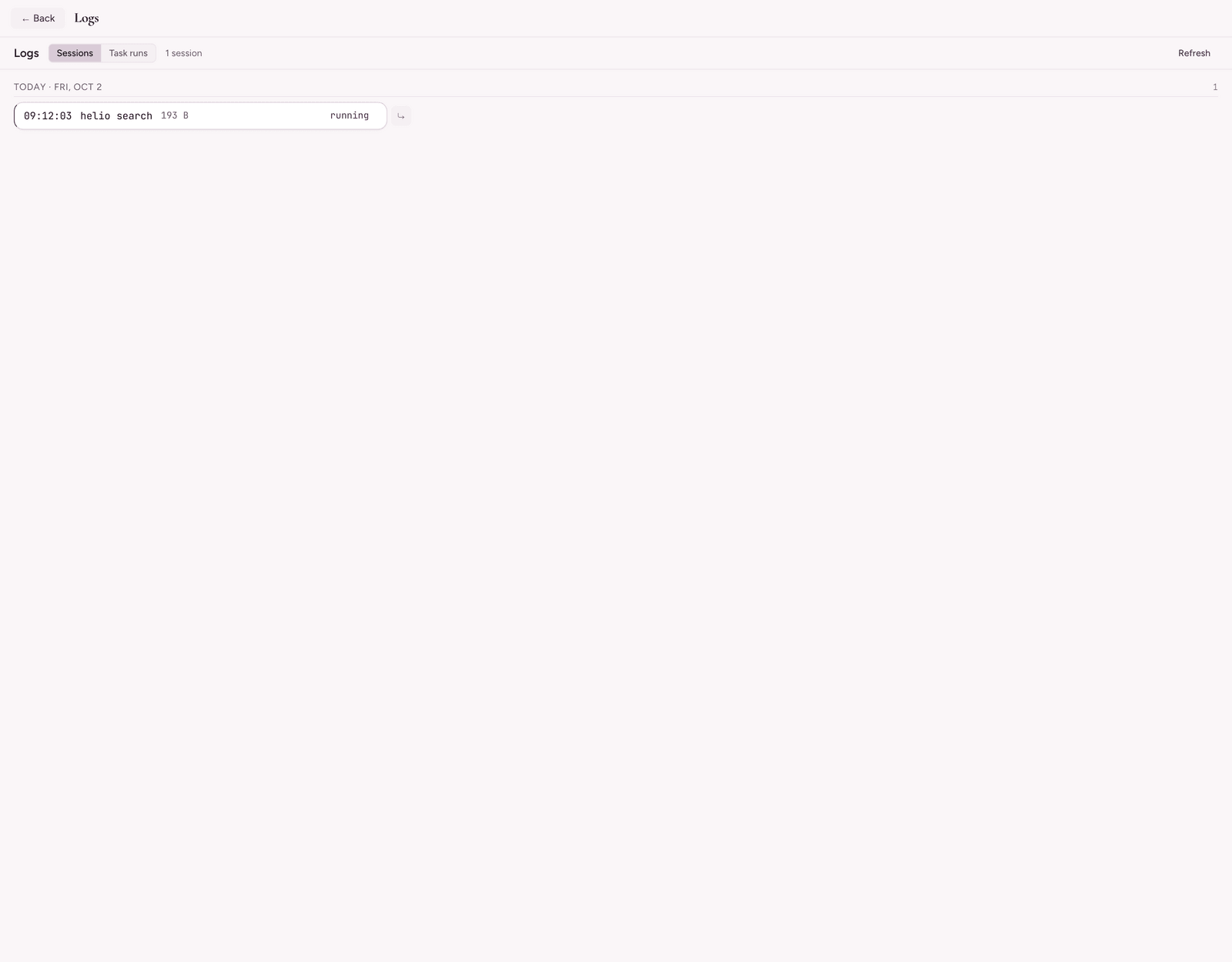
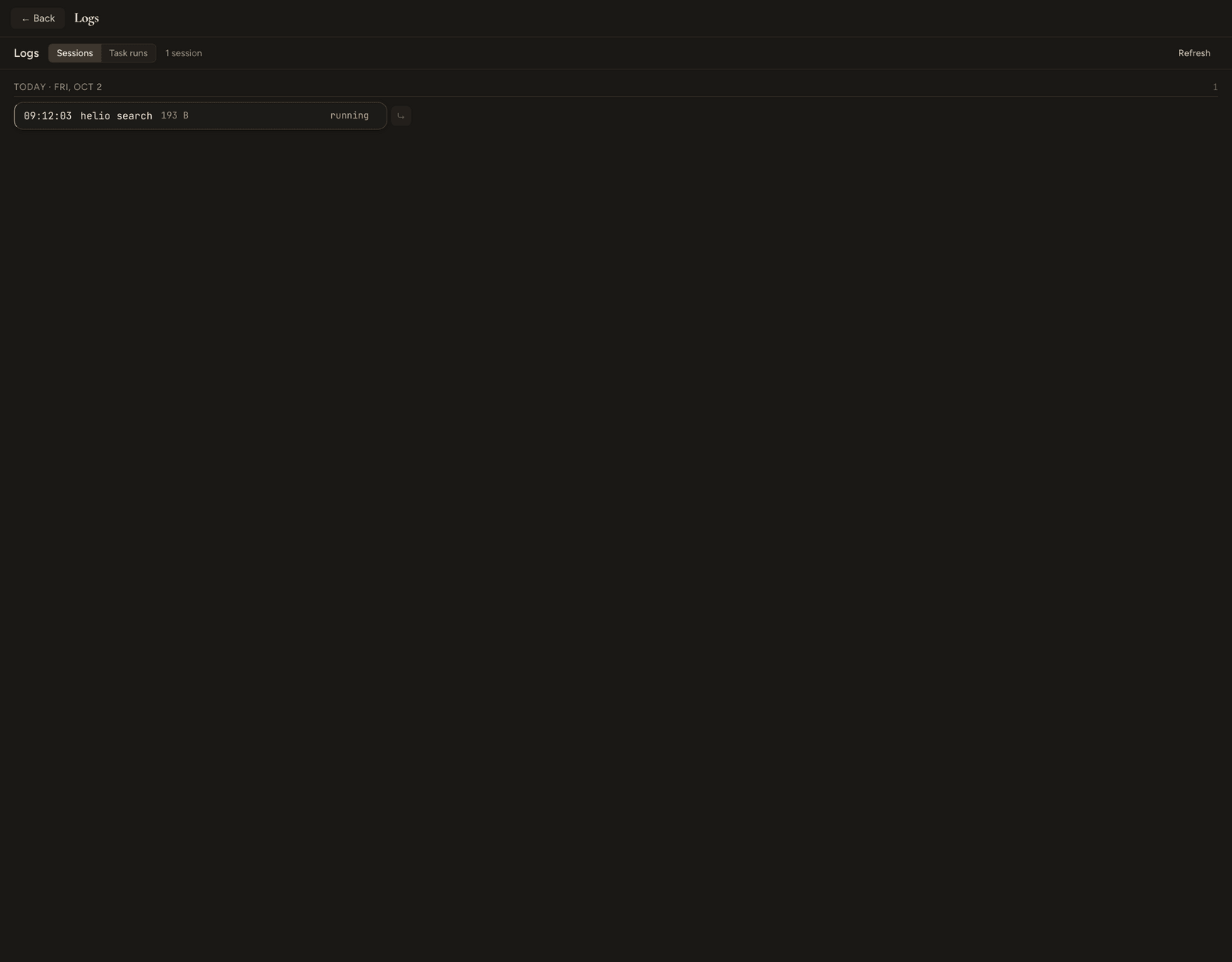
It browses <conception>/.condash/logs/, where one plain-text .txt is written per terminal session — see Embedded terminal → Session logging for the file format and how capture is turned on. Capture is opt-in and off by default, so a fresh install shows an empty pane until you enable Record terminal sessions to disk under Settings → Terminal.
The toolbar
Across the top: the pane title, a Sessions | Task runs switch, a count of whatever the active view holds (142 sessions / 7 runs), and a Refresh button. Refresh re-reads the day list and every day already loaded; View → Refresh (F5) does the same thing.
Sessions
Sessions are grouped by day, newest first, in two bands.
- The last 7 days that have logs each get their own group. Today is always expanded and cannot be collapsed; the other six start collapsed.
- Everything older is folded into collapsible per-month groups, each with a light day sub-header inside.
Every group header carries its session count, taken from the cheap day index — so a collapsed month shows a true count without its sessions being read. Only the recent band is loaded eagerly; an older month reads its sessions the first time you expand it, which is why opening the pane on a long-lived conception is instant.
Each session is a card showing:
| Field | Notes |
|---|---|
| Time | Spawn time, HH:MM:SS. |
| Repo | Present when the tab was launched from a Code-pane row. |
| Command | The short command, or (no command). |
| Size | Bytes on disk. |
| Status | running while the session is alive, exit N once it finished, or ended ?. |
ended ? means the footer line was synthesised by the boot-time orphan sweep: condash exited or crashed before the real exit code could be flushed, so the session is definitely not running but its exit is unknown. Hover the badge for that explanation. Cards with a non-zero exit are tinted.
Beside each card sits a ⤷ reveal button that opens the .txt in your OS file manager, selected in its parent folder.
The session viewer
Clicking a card opens a full-overlay viewer. Its header shows <day> <time> · <repo> · <cmd> · exit <N>, the file's path, and a ⌫ button that deletes this session (with a confirmation naming the day, time, and command — the delete cannot be undone). Esc closes the viewer.
The transcript is virtualised: only the visible window of lines is mounted, so a multi-megabyte log scrolls as smoothly as a short one. Long lines scroll horizontally rather than wrapping — every row has to stay exactly one line tall for the virtualiser to work.
The open transcript is a snapshot. Its header's Reload explicitly reads the same session again; parent Refresh does not reload an already-open transcript. No log watcher, polling or tail is added. Reload leaves the last successful transcript mounted while busy or after a read failure. It preserves the latest search text and scroll, clamps the active match to the new hit count (even when line count is unchanged), and does not automatically center a match on replacement. Scroll clamps when the transcript becomes shorter. Close, path changes and conception departure reject late replies and do not initiate more reads.
Search sits above the transcript:
| Key / control | Effect |
|---|---|
Cmd/Ctrl+F |
Focus and select the search box. |
Enter |
Jump to the next match. |
Shift+Enter |
Jump to the previous match. |
↑ / ↓ buttons |
Same as Shift+Enter / Enter. |
n / N counter |
Position in the hit list. |
Matching is case-insensitive substring, computed once per query across every line; the active hit is highlighted differently from the rest and scrolled to the middle of the viewport.
Task runs
The Task runs switch flips to the segregated store under .condash/scheduled/<slug>/ and .condash/manual/<slug>/ — the console output of scheduled task runs, plus manual runs you flagged Keep out of logs. Runs are grouped by task slug with a scheduled / manual badge and a run count; each row shows the run's day, time, session id, and size, and opens in the same viewer.
These runs never appear in the Sessions list, in search, or in reports. When there are none the pane says so and explains what lands there. See The Tasks pane → Keep runs out of the logs.
Finding a session by content
Logs are a source of the global search modal (Ctrl+K), but they are large and rarely searched, so they are scanned only when you pick the Logs filter pill — never in the default All view. Activating a log hit opens the viewer directly on that session. The # condash: header and footer lines are stripped before matching, so a snippet shows transcript text rather than metadata JSON. See Search → Source filters.
Deleting
The viewer's ⌫ deletes the open session, one .txt, with no sidecar to clean up. There is no bulk delete in the pane: whole-day and whole-directory cleanup is the janitor's job, driven by terminal.logging.retentionDays and terminal.logging.maxDirMb — see Config files → Terminal logging. To wipe everything immediately, delete <conception>/.condash/logs/ yourself.
Turning logging off does not delete past transcripts; the pane keeps browsing them.
See also
- Embedded terminal → Session logging — what gets captured, the file format, and the privacy trade-offs.
- The Tasks pane — where the task-run store comes from.
- Search — the Logs filter pill.