First run
When to read this. You've never used condash. You want to get to a working dashboard on your machine in one sitting, with a tree of realistic items to poke at before you commit to building your own.
By the end, you'll have condash installed, running against the bundled conception-demo tree, and the Projects, Code, Knowledge, and History tabs will all render with content.
1. Install condash
The fastest path is a prebuilt installer from the GitHub Releases page. Each release ships a per-OS bundle:
| Platform | Artifact |
|---|---|
| Linux | condash_<version>_amd64.AppImage or condash_<version>_amd64.deb |
| macOS | condash_<version>_<arch>.dmg |
| Windows | condash_<version>_x64_en-US.msi |
The builds are unsigned — your OS will ask you to confirm once on first launch. See Install the desktop app for the per-platform bypass.
If you'd rather build from source, clone the repo and run:
make setup                 # one-off, installs cargo-tauri into the rustup toolchain
make frontend              # bundle the dashboard JS/CSS
make build                 # produce the platform installer under src-tauri/target/release/bundle/
That's the same pipeline CI uses. You'll need a Rust toolchain and, on Linux, the usual WebKitGTK + libappindicator system packages.
2. Fetch the demo tree
The condash repo ships a realistic demo tree at examples/conception-demo/. It has nine items, all six statuses, a knowledge tree, and two deliverable PDFs — enough for every feature in the rest of the tutorials to have something to act on.
Copy it into a working location:
mkdir -p ~/conception-demo
curl -fsSL https://codeload.github.com/vcoeur/condash/tar.gz/main \
  | tar -xz --strip-components=2 -C ~/conception-demo \
      condash-main/examples/conception-demo
Inspect what you got:
~/conception-demo/
├── README.md
├── config/
│   ├── preferences.yml
│   └── repositories.yml
├── projects/
│   ├── 2026-03/         # items created last month (2 done)
│   └── 2026-04/         # 7 items created this month (3 now, 1 review, 1 soon, 1 later, 1 backlog)
└── knowledge/
    ├── conventions.md
    ├── internal/
    └── topics/
Everything is plain Markdown. Open projects/2026-04/2026-04-02-fuzzy-search-v2/README.md in your editor to see the header format.
3. Point condash at the tree
condash reads the conception tree location from the CONDASH_CONCEPTION_PATH environment variable. Default is $HOME/src/vcoeur/conception.
The quickest way to try the demo tree for a single run is:
To make it persistent, export the variable from your shell's rc file (~/.bashrc, ~/.zshrc, or the equivalent). Or, once the window is open, click the gear icon in the dashboard header and set the path in the General tab — that writes it to ~/conception-demo/config/preferences.yml for next time.
4. Launch
Tauri opens a native desktop window on your OS's webview and points it at the local dashboard. You should see this:
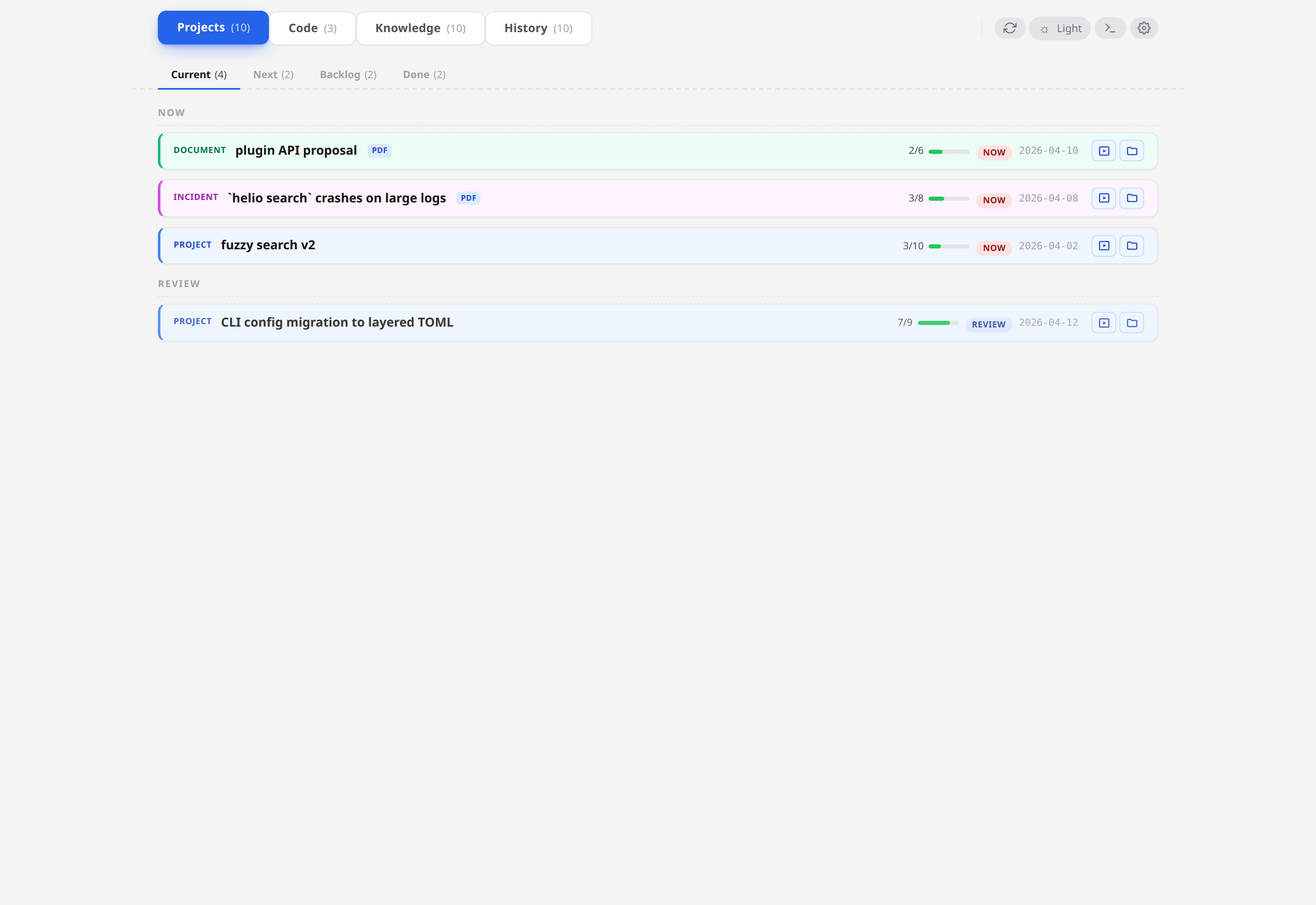
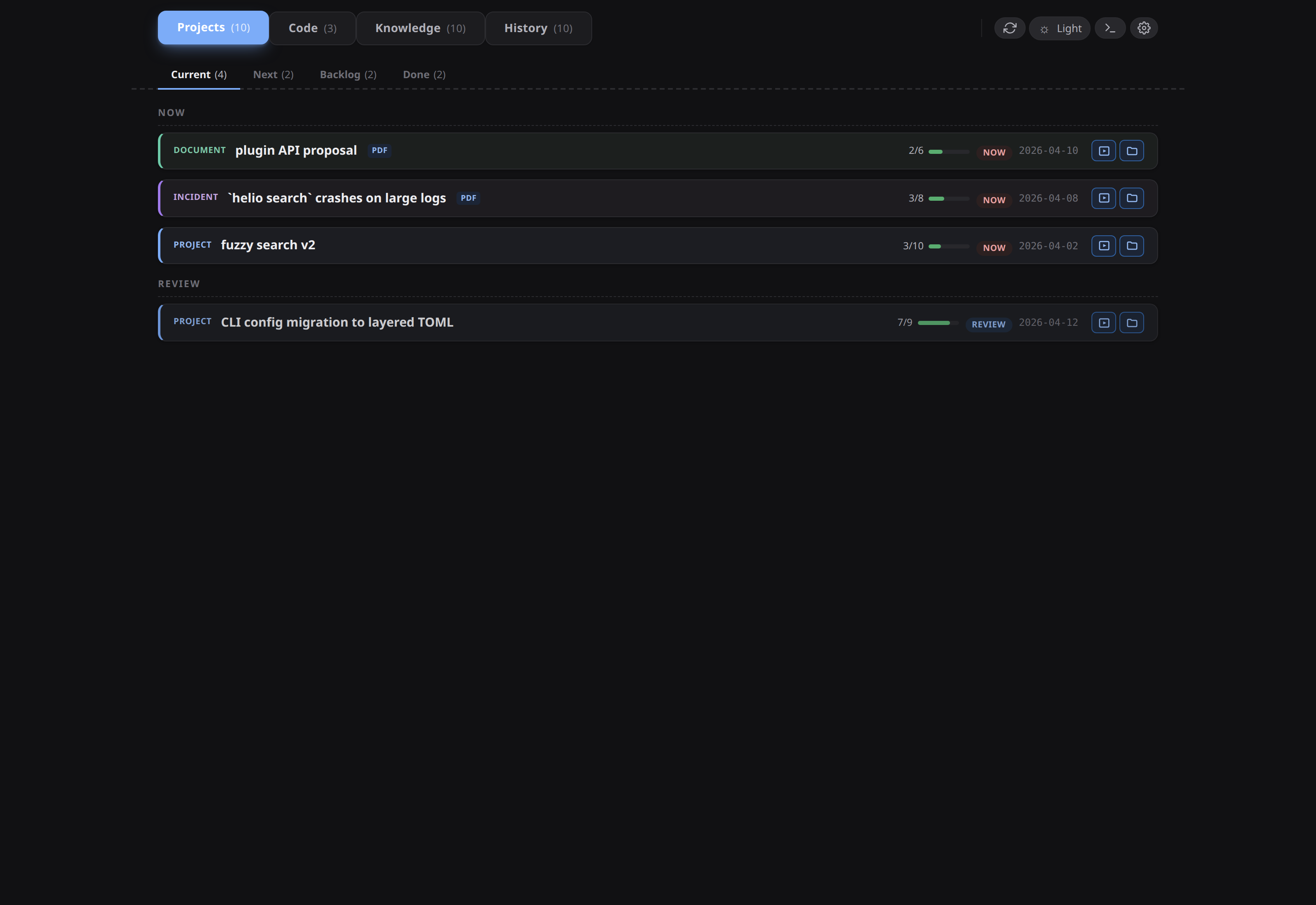
The header shows four top-level tabs with counts: Projects (9), Code (3), Knowledge (8), History (9). Under Projects, the sub-tabs are Current / Next / Backlog / Done. The demo tree was built so every bucket has something in it.
5. Walk around
Take two minutes to click through:
- Current — 3 items with status
now(one of each kind: document, incident, project) and 1 item with statusreview. Click the fuzzy-search-v2 row; the card expands, showing the README on the left and a step list on the right with all four marker states ([x],[~],[ ],[-]). - Next — the soon bucket. One project (
json-export). - Backlog — one project, parked.
- Done — two archived items from the previous month.
- Code — three repos: condash scanned
workspace_path: /tmp/conception-demo-workspacefromconfig/repositories.ymland found one.git/per entry. (If the Code tab shows 0, the workspace path on your machine doesn't exist yet — we'll set that up properly in Your first project.) - Knowledge — the
knowledge/tree rendered as an explorer:conventions.mdat the root,InternalandTopicsfolders with index files. - History — full-text search across every item + note. Type
fuzzyto see ranked matches.
Click the gear icon in the top right to see the Configuration modal with three tabs — General / Repositories / Preferences. The General tab holds the conception path and a few per-machine defaults; the other two map directly to conception-demo/config/repositories.yml and conception-demo/config/preferences.yml (tree-versioned). You'll use this modal in the next tutorial.
6. Close the window
Closing the native window exits condash. Relaunch with condash whenever you want to come back — state lives in the files, not in the app.
What you just learned
- Installing condash is either a one-click installer from GitHub Releases or three
maketargets from source. CONDASH_CONCEPTION_PATHplus the gear modal is the whole setup flow. The path is the only thing you must set.- The dashboard renders the files as-is on every page load. There's no database, no watcher, no cache.
- The tree carries two YAML config files in
config/— one team-shared (repositories.yml), one per-machine (preferences.yml). We'll dig into that split in Configure the conception path.
Next
Your first project → — create a real item, wire its steps, link it to another item, add a note.