Your first project
When to read this. You finished First run and have condash running against the conception-demo tree. Now you want to do actual work in it — create an item, change its status, add and close steps, drop a note, cross-link items.
By the end, you'll have added a new project to the tree, walked it from soon through now to done, and understood which actions live in the dashboard versus which live in your editor.
The two kinds of action
Before we start: condash's write surface is deliberately small. The dashboard mutates files only for a handful of actions (toggling a step, changing status, editing the config). Everything else — creating a new item, writing the body of a README, editing a note — happens in your editor. You can absolutely also create items from a Claude Code session via the management skill, but it's the same thing: the skill just writes the files, and the dashboard re-renders.
See the full list in Mutation model.
1. Create the item
Projects live at projects/YYYY-MM/YYYY-MM-DD-slug/README.md. Pick today's date and a slug.
From the dashboard: click the + button in the header (right of the terminal icon). A modal opens asking for the handful of fields condash's parser actually reads:
- Kind — project, incident, or document.
- Status —
now/soon/later/backlog/review/done. - Title — becomes the
# H1heading. - Slug — auto-derived from the title; edit it if you want a shorter handle.
- Apps — comma-separated, rendered as a backticked list in the header.
- For an incident, add Environment + Severity; for a document, optional Languages.
Click Create item. condash writes projects/<YYYY-MM>/<YYYY-MM-DD>-<slug>/README.md + an empty notes/ sibling, seeds the body with just enough structure (Goal, Steps, Timeline) to parse cleanly, switches to the matching sub-tab, and expands the new card. Everything else — Scope, Goal body, Steps content — you write in your editor.
From the shell (equivalent, useful when condash isn't running):
mkdir -p ~/conception-demo/projects/2026-04/2026-04-18-helio-benchmark-harness/notes
cat > ~/conception-demo/projects/2026-04/2026-04-18-helio-benchmark-harness/README.md <<'EOF'
# Helio benchmark harness

**Date**: 2026-04-18
**Kind**: project
**Status**: soon
**Apps**: `helio`

## Goal

Build a repeatable benchmark harness for the helio parser so we can catch
perf regressions before release instead of during them.

## Scope

**In scope**

- Seed corpus at 3 fixed sizes (1 MiB / 100 MiB / 1 GiB), checked into a
  `fakelog` submodule.
- `make bench` target that runs the full matrix and emits a JSON report.
- Comparison against the previous run's baseline — fail CI if p95 regresses
  by more than 10%.

**Out of scope**

- A dashboard for historical trends. JSON is the interchange; visualisation
  comes later.

## Steps

- [ ] Pick a corpus storage format (fakelog submodule vs asset in releases).
- [ ] Wire `make bench` to drive the existing `cli.py::bench` subcommand.
- [ ] Capture p50 / p95 / p99 and total runtime per size.
- [ ] Add the regression check to `.github/workflows/ci.yml`.
- [ ] Document the harness in [[fuzzy-search-v2|the fuzzy-search item]] so
      that item's benchmarking notes stop living in a standalone file.

## Timeline

- 2026-04-18 — Project created.

## Notes
EOF
Switch back to the condash window and click the refresh icon in the header. The project appears under Next with status soon.
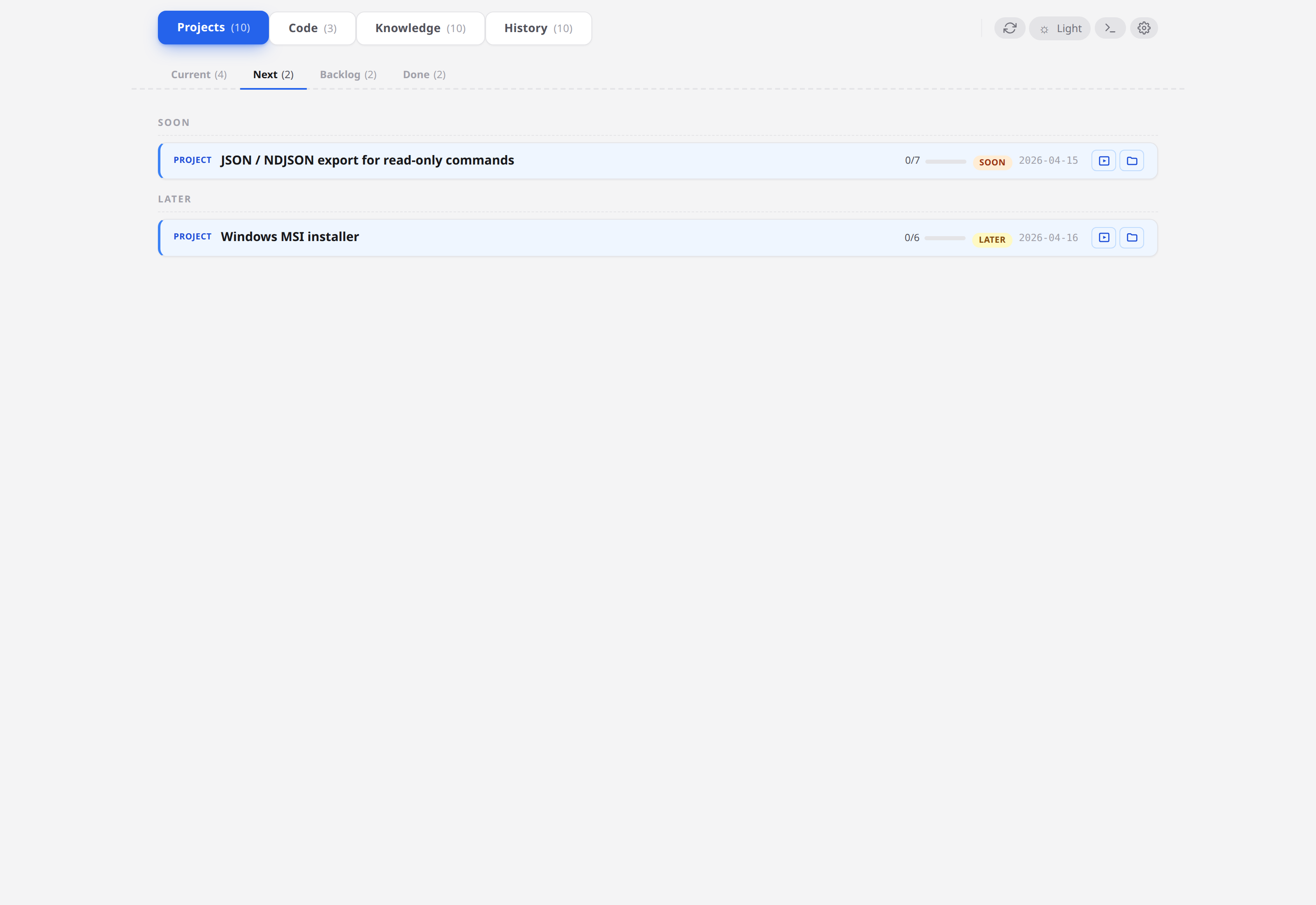
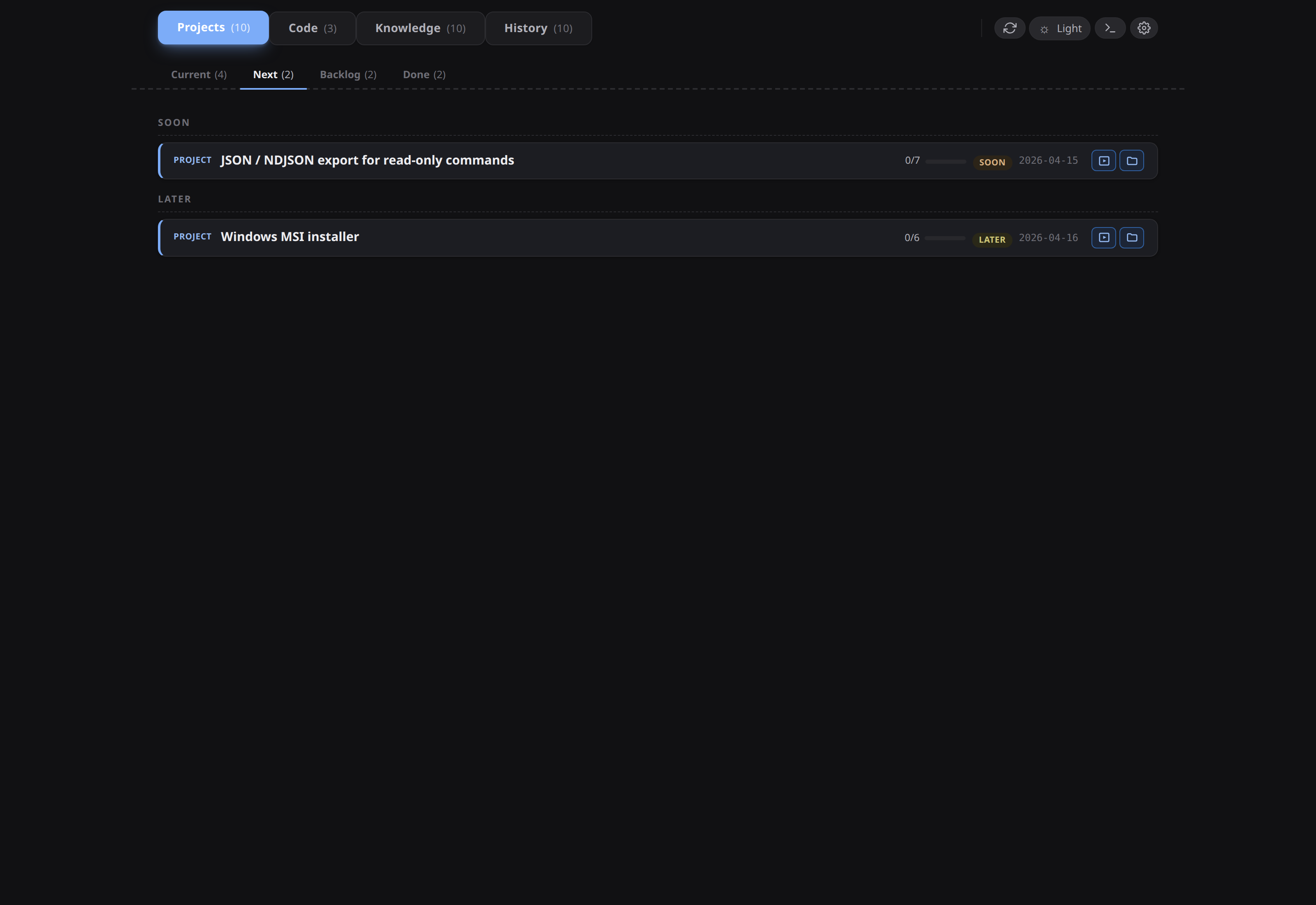
Notice the [[fuzzy-search-v2|the fuzzy-search item]] in the last step — that's a wikilink that will resolve to the existing fuzzy-search-v2 item. Click the step text once you've expanded the card; condash follows the link to that item's card.
2. Change its status from the dashboard
Click into the project card to expand it. Somewhere in the header you'll see a status pill that currently reads SOON. Click-and-drag the whole item row to the Current sub-tab, or use the gear dropdown on the card. The dashboard rewrites the **Status**: line in the README.
Check with git diff in a second shell:
You'll see exactly one line changed: -**Status**: soon → +**Status**: now. That's the entire mutation.
3. Toggle a step
With the card still expanded, tick the checkbox on the first step ("Pick a corpus storage format"). The marker flips from [ ] to [x]; the progress counter on the card header jumps from 0/5 to 1/5.
Tick another — try the second one — and then shift-click a third to mark it in-progress ([~]). Three states are now visible side by side:
- two
[x](done, struck through) - one
[~](in progress, filled amber) - two
[ ](open)
git diff shows three single-line edits; the rest of the file is untouched.
4. Add a note
The dashboard can create files inside <item>/notes/. Click the + button in the Files panel (bottom-left of the expanded card). Name the new file corpus-format.md and hit Enter.
A blank preview opens on the right. Click into it to edit. The Save button (top of the note pane) turns active as soon as you type the first character — condash tracks unsaved changes explicitly rather than autosaving. Paste something plausible:
# Corpus format decision

Two options:

1. **Git submodule** (`fakelog`) pinned to a content-addressed tag. Pro: one
   tree stays reproducible across machines. Con: 1 GiB corpus makes cloning
   expensive on fresh setups.
2. **Release asset** fetched on first run via a cached script. Pro: clone
   stays small. Con: another thing that can 404.

Going with (1) — the reproducibility cost of (2) is too high for a perf harness.
Click Save (or press Ctrl+S). The button dims back to No unsaved changes once the write succeeds. If you close the note pane while the button is still lit, condash pops a You have unsaved changes. Discard them? confirm so a stray click doesn't lose the buffer.
Click back to the README pane. The note you just created shows up in the Files tree. That's it — the note is a regular .md file under <item>/notes/, gitignorable, diffable, editable from your editor too.
5. Cross-link with a wikilink
You already have a wikilink from your item into fuzzy-search-v2. Go the other way: open projects/2026-04/2026-04-02-fuzzy-search-v2/notes/design.md in your editor and add a line:
> See also: [[helio-benchmark-harness]] — the shared harness we're extracting
> the parser benchmarks into.
Refresh the dashboard. Click fuzzy-search-v2 → open design.md in the note pane → click the new wikilink. Condash navigates straight to your item. The whole resolution is [[slug]]; no URLs, no IDs.
More on link shapes in Link items with wikilinks.
6. Close the project
Tick the remaining steps (we won't actually do any of the work — this is a tutorial). When the step counter reads 5/5, drag the item to the Done sub-tab or change status via the card's status dropdown. **Status**: now becomes **Status**: done.
7. Done items stay where they were created
The project is now at projects/2026-04/2026-04-18-helio-benchmark-harness/ with **Status**: done. It doesn't move. Under the flat-month layout condash expects, items live under their creation month for their whole lifecycle — status alone signals done-ness. Look at the two items in projects/2026-03/ in the demo tree: those are last month's done items, and they stayed right where they were created.
The Done sub-tab in the dashboard groups closed items so they're out of the way without being out of sight.
What you just learned
- Items are filesystem directories with a
README.mdand optionalnotes/. Create them in your editor (or via the management skill) — the dashboard doesn't create items, only mutates them. - The dashboard's mutations are narrow: toggle step, edit step, change status, create/rename/upload notes, save config. Everything else is yours to do in an editor. See Mutation model.
- Wikilinks (
[[slug]]) cross-link items. They resolve to any item whose directory name ends in-<slug>. - Items never move. An item lives under its creation-month directory forever;
**Status**: donealone signals closure.
Next
A day with condash → — the realistic workflow: open code from the repo strip, use the embedded terminal to run a build, paste a screenshot into a note, create a PR, close.